How to write a great shortcut
Last updated: June 9, 2026
Shortcuts are saved instructions that turn your meeting into exactly the output you want. Write one once, with all the context baked in, and you can reuse it instead of retyping the same thing every time.
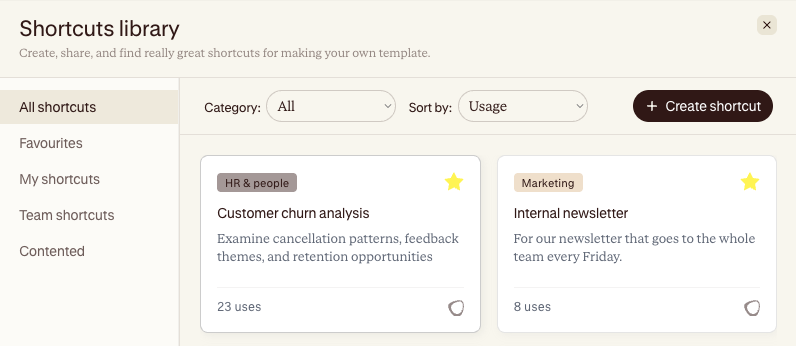
The four parts of a great shortcut
The difference between a shortcut that gives you something usable and one you have to redo is the structure of your instructions (AKA prompt). Short, vague instructions give you inconsistent outputs because you have not told Contented what good looks like. The more you constrain it, the more reliable it gets.
A strong shortcut has five parts:
The job - Start by saying what you want and why. Treat it like briefing a smart colleague who has just joined: explain the situation and the outcome you need.
The rules - Then add the guardrails. Be specific. Tell it what to include, what to leave out, and how long the output should be.
The context - This is where you save yourself from re-explaining your world every time.
The format - if the shape of the output matters, show it. List the exact headings you want.
The four parts are easier to learn by building one
Let's write a shortcut that turns a team meeting or all-hands into a short internal newsletter update for the wider company.
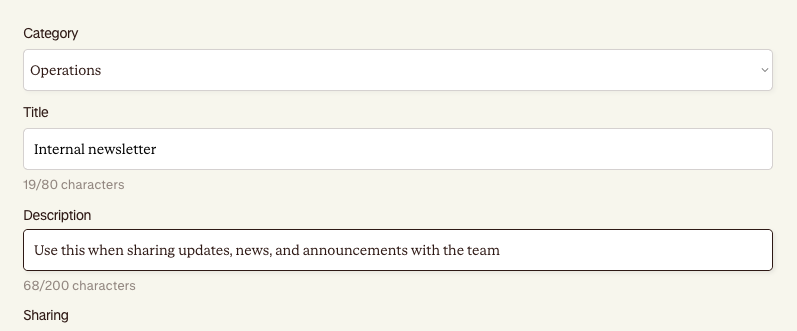
It's a good one to practise on because the audience was not in the room, so the output has to catch people up, stay readable, and not make anything up. We'll build it part by part, then show the whole thing at the end.
1. Start with the job
First, say what you want and why. Who is this for, and what should it do for them?
The readers are people across the company who missed the meeting. They do not want minutes, they want a quick, friendly sense of what happened and what is coming. So the job is:
You are writing an internal newsletter update on behalf of [insert team or person] for the wider company. Most readers were not in the meeting, so your job is to give them a quick, friendly catch-up on what happened and what is coming next.
2. Add the rules
Now the guardrails. A newsletter lives or dies on tone and length, so be specific about both. Tell it what to do and what to avoid.
Write for people who were not in the room.
Keep it warm and easy to skim, not a set of minutes.
Aim for around 200 words.
Cut corporate filler. If you use a project name or term an outsider would not know, add a few words of plain context.
3. Add your context
This is where you save yourself from re-explaining your world every time. For a company newsletter, Contented needs to know who you are and what voice you write in.
Context: newsletter goes to the whole team every Friday and the tone is friendly and plain, more "quick note from a colleague" than "official memo".
4. Show the format
A newsletter has a shape. Give Contented the exact one you want so every edition looks the same.
Structure the output like this:
A short, friendly headline, one line [An opening line that tells readers why this update matters to them]
What we covered [2 to 4 short bullets on the main topics]
Decisions [What was actually decided. Leave this section out if nothing was decided.]
What's next [What is happening next, and who is on it]
Worth a shout [Any genuine wins or thank-yous that came up. Leave out if there were none.]
The little "leave this out if" notes matter. They stop Contented from inventing a decision just to fill a heading, which is exactly the kind of polite fabrication you do not want in something the whole company reads.
The whole shortcut
Put the four parts together and you have a shortcut for making an output that anyone on your team can run to get the same quality update every week:
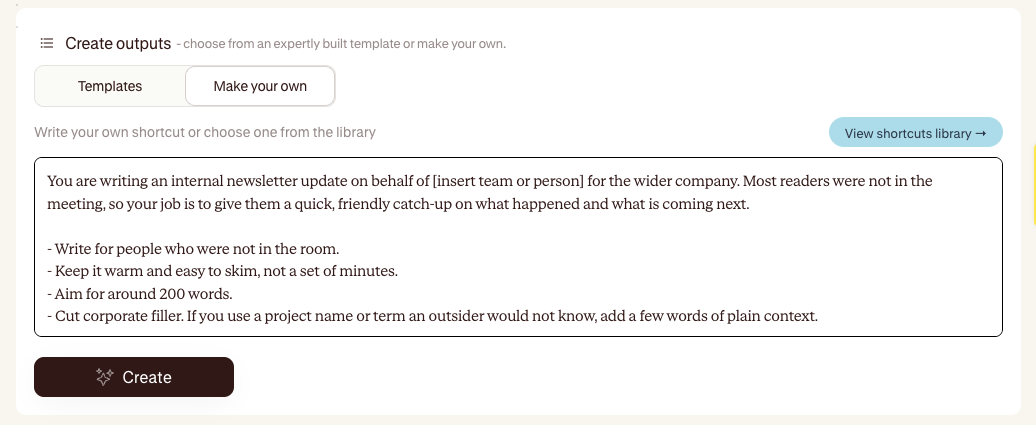
You are writing an internal newsletter update on behalf of [insert team or person] for the wider company. Most readers were not in the meeting, so your job is to give them a quick, friendly catch-up on what happened and what is coming next.
Write for people who were not in the room.
Keep it warm and easy to skim, not a set of minutes.
Aim for around 200 words.
Cut corporate filler. If you use a project name or term an outsider would not know, add a few words of plain context.
Context: newsletter goes to the whole team every Friday and the tone is friendly and plain, more "quick note from a colleague" than "official memo".
Structure the output like this:
A short, friendly headline, one line [An opening line that tells readers why this update matters to them]
What we covered [2 to 4 short bullets on the main topics]
Decisions [What was actually decided. Leave this section out if nothing was decided.]
What's next [What is happening next, and who is on it]
Worth a shout [Any genuine wins or thank-yous that came up. Leave out if there were none.]
Then refine it
Run it on a real meeting and read the result. If it is too long, drop your word target. If it keeps naming people you would rather leave out, tell it to keep attribution light. Two or three passes and you have a newsletter shortcut your whole team can use.
Save it, then share it
Once you're happy with it, save the shortcut so it is there next time. You have three options:
Private keeps it to you. Good for things that are specific to how you work.
My team shares it with your workspace so everyone gets the same quality output without rebuilding it.
Contented is the curated set our team publishes for everyone, so it is worth a browse before you write your own. Someone may have already solved your problem.
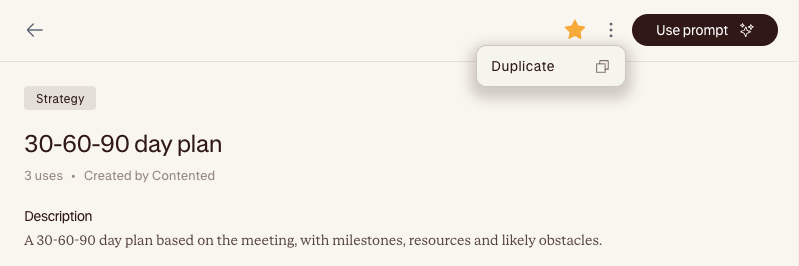
The fastest way to a great shortcut is often remixing an existing one. Open a Contented shortcut that is close to what you need, duplicate it, tweak the rules and context for your situation, and save your own version.
What Contented can and cannot see
Keep one limitation in mind: Contented works from your meeting, not the rest of your world. It does not have your inbox, your task list, or anything that happened outside the recording.
So a shortcut that says "list the tasks I still have open" will only know about tasks mentioned in the meeting, not what you have already ticked off elsewhere. Write your instructions around what was actually said, and you will not get caught out.
Quick checklist
Before you save a your shortcut, run it past this:
Does it state the job and why it matters?
Are the rules specific enough that a stranger could run it and get the same result?
Have you added the context Contented would not otherwise know?
If format matters, have you shown an example?
Have you tested it on a real meeting and fixed what didn't work?