How to share a shortcut with your team
Last updated: June 9, 2026
Built a shortcut that works well? Share it with your workspace so everyone gets the same great output, without rebuilding it themselves.
Sharing is a team-plan feature. You can create and use shortcuts for yourself on any paid plan, but sharing to your workspace is where the team plan comes in.
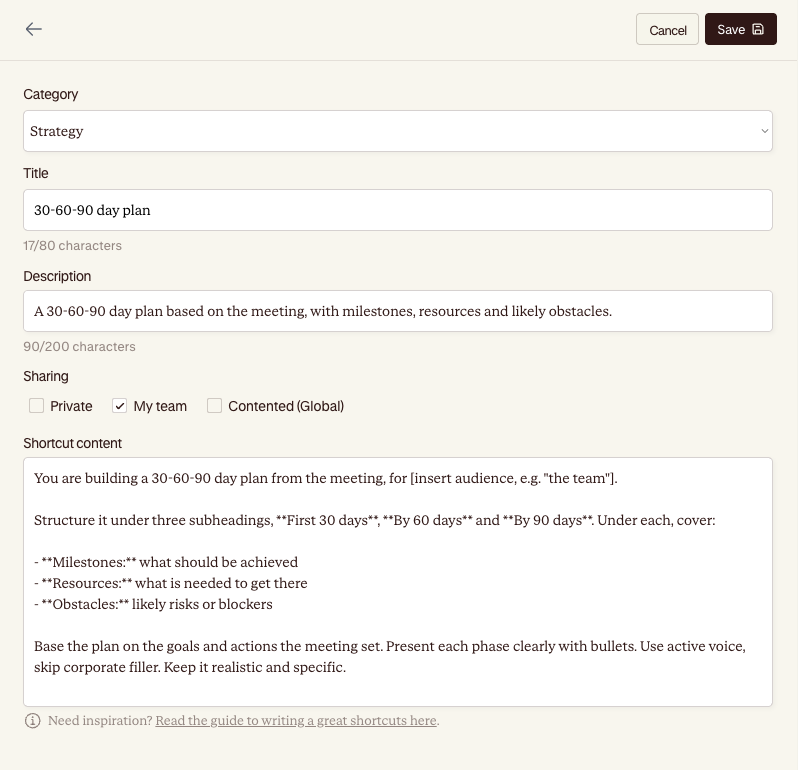
How to share
Open your shortcut from My shortcuts in the library.
Hit Share to my team.
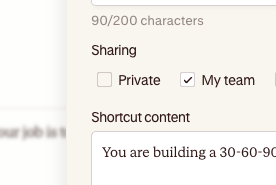
Confirm, and it lands in your workspace's shared library straight away.
That's it. Your shortcut now sits under My team for everyone in your workspace.
Who can see it
Once shared, every member of your workspace can find your shortcut under My team and use it on their own recordings. They get the same structured output you do, every time.
You stay the owner. That means:
Anyone on the team can use it. They select it, hit create, done.
Only you can edit or delete it. Teammates can't change your shortcut out from under you. If someone wants their own version, they duplicate it. More on that in...
📄 How to duplicate a shortcut and make it your own
Not on a team plan yet?
If you're on an individual paid plan, you'll see the share option but it'll prompt you to upgrade. Sharing shortcuts across a workspace is one of the things a team plan unlocks, alongside everyone working from the same set of trusted outputs.
To talk through a team plan, book a demo or tell us about your team and we'll send pricing.