What is the shortcuts library?
Last updated: June 9, 2026
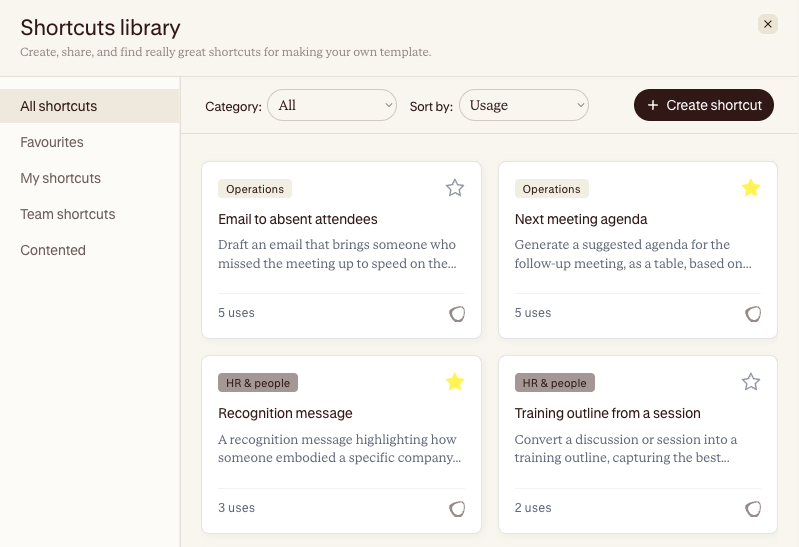
Contented's shortcuts library is where you can create, save, find, and share shortcuts for making your own outputs.
These saved shortcuts (previously known as DIY) mean that instead of typing a custom instruction from scratch every time you want to create an output not already offered by Contented, you choose a shortcut.
Shortcuts are for quick outputs specific to you, such as the follow-up email you always send, the way you like your meeting recaps, the analysis your team runs after every customer call: write it once, save it, and reuse it.
Why should I use it?
If you'd ever used the Additional instructions or DIY option in Contented, you'll know it always started as a blank box. If you had a way of phrasing things that worked, you either retyped it each time or kept it in a document to copy across.
With the shortcuts library, you can save your own instructions to use again and share them with your team for consistency.
What's inside the shortcuts library
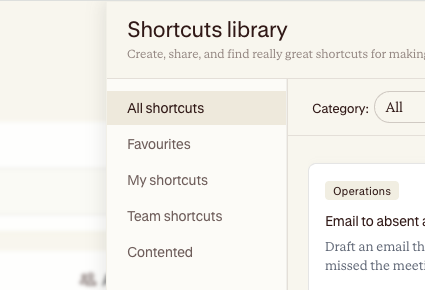
The library is split into a few views so you can find what you need fast:
All shortcuts shows everything available to you in one place.
Favourites: The shortcuts you have starred and want to frequently reuse. Star something to send it here.
My shortcuts: All the shortcuts you have created yourself.
Team shortcuts: If you're on a team plan, you'll be able to share your shortcuts with others, and see all those shared across your workspace.
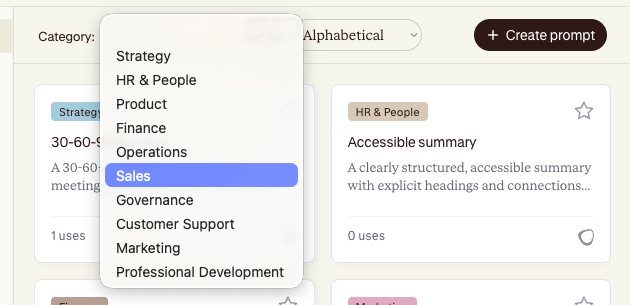
Categories: Shortcuts can be grouped by category (HR & People, Operations, Strategy and so on), and you can sort by usage to see what's proving most useful.
The three kinds of shortcuts
Every shortcut in the library is one of three types; the difference is just who can see it.
Contented: Made by our team and available to everyone. A good place to start, because we may have already built one for the thing you need. These can be duplicated.
Team: Created by someone in your workspace and shared with your colleagues. These keep a team consistent: the same recap, the same report, every time, no matter who runs it.
Your shortcuts: Private to you. Perfect for the way you personally like to work.
How to use a shortcut
There are three steps:
Browse the library and click 'Use shortcut'
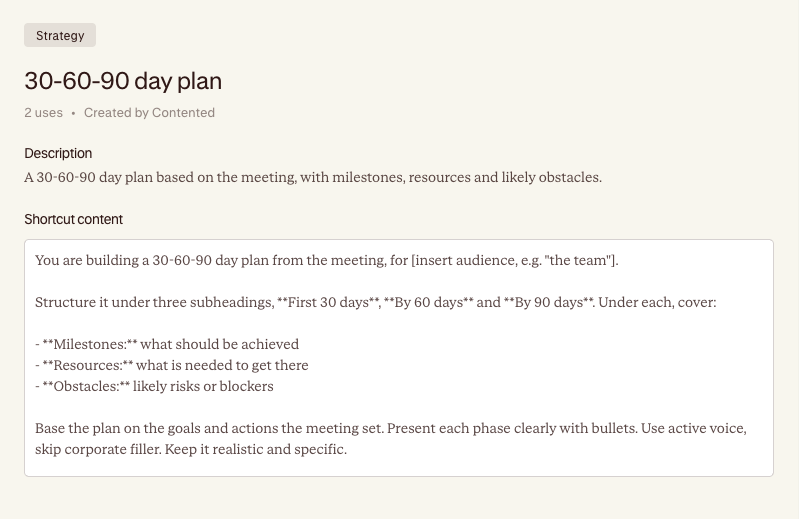
It autofills into the Make your own box in your Contented workspace.
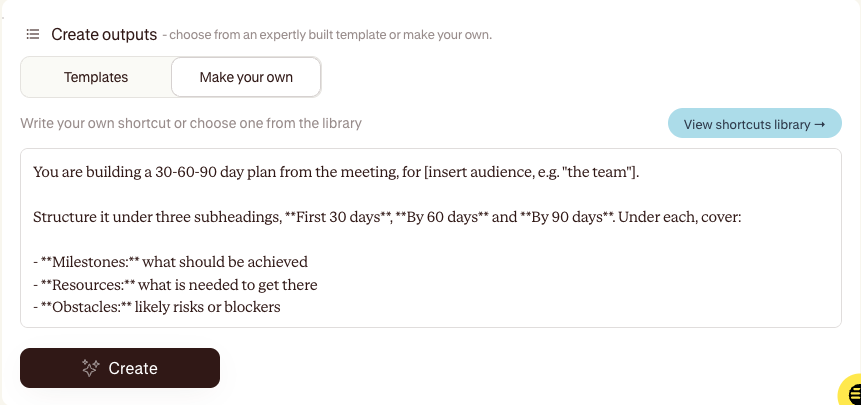
Hit Create, and Contented runs it against your meeting.
That's it. You can tweak the autofilled text before you run it if you want a one-off change, without touching the saved version.
How to make your own shortcut
When you find yourself typing the same additional instruction more than once, that's your cue to save it as a shortcut. You give it a category, a title, a short description, and the instructions, then choose who can see it.
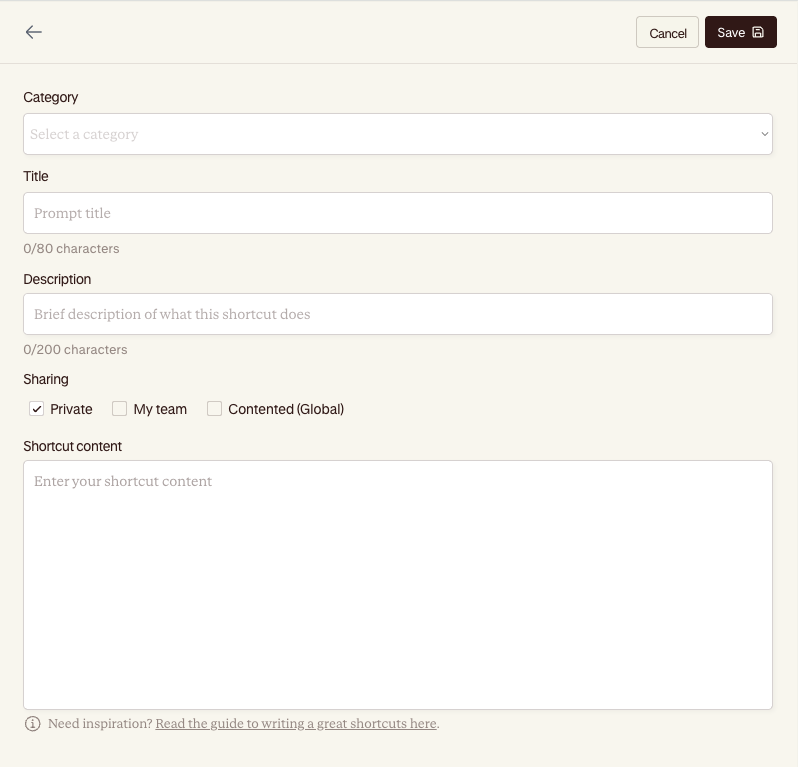
The fastest way to a good one is often to open a Contented shortcut that's close to what you need and remix it. Note that these shortcuts are designed to be very simple and quick to use.
Here's a guide to writing shortcuts that give sharp, reliable output every time:
📄 How to write a great shortcut
Share what works
When you've made an output you like and want to keep, you can save it as a shortcut, and you can also share it. Choose between:
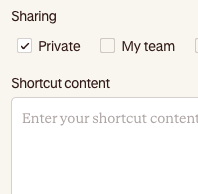
Private keeps it to you.
My team shares it with your workspace so everyone benefits.