How to duplicate a shortcut and make it your own
Last updated: June 9, 2026
Found a Contented or team shortcut that's almost right, but you want to tweak it? Duplicate it first. You can't edit a shortcut someone else shared, but you can make your own copy and change that freely.
Why you can't just edit it
Shared shortcuts have one owner. When someone shares a shortcut to My team, only they can edit or delete it. That keeps everyone's trusted outputs stable, so a shortcut your whole team relies on doesn't change without warning.
If you want a version of your own, the answer is to duplicate, not edit.
How to duplicate
Open the team shortcut from My team in the library. Or, a Contented shortcut.
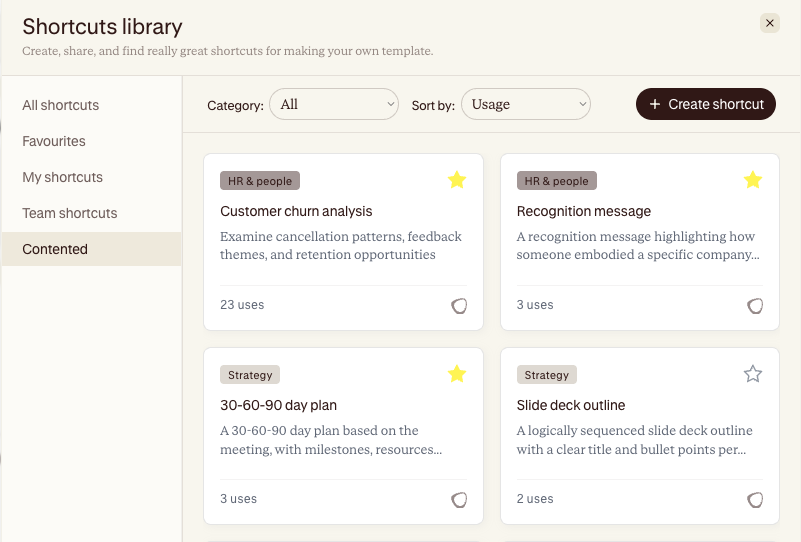
Hit Duplicate.
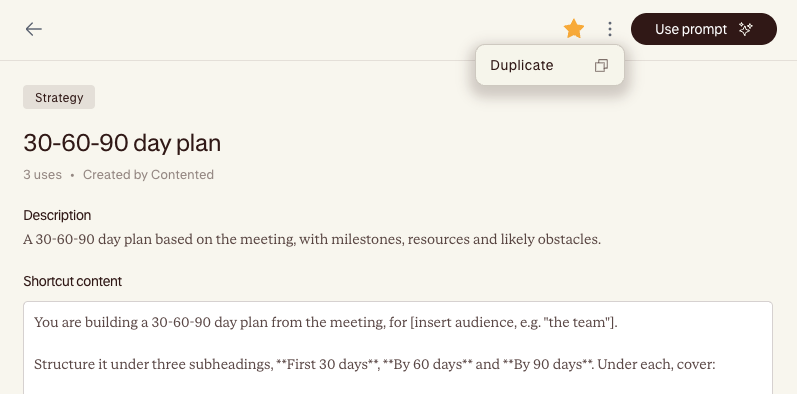
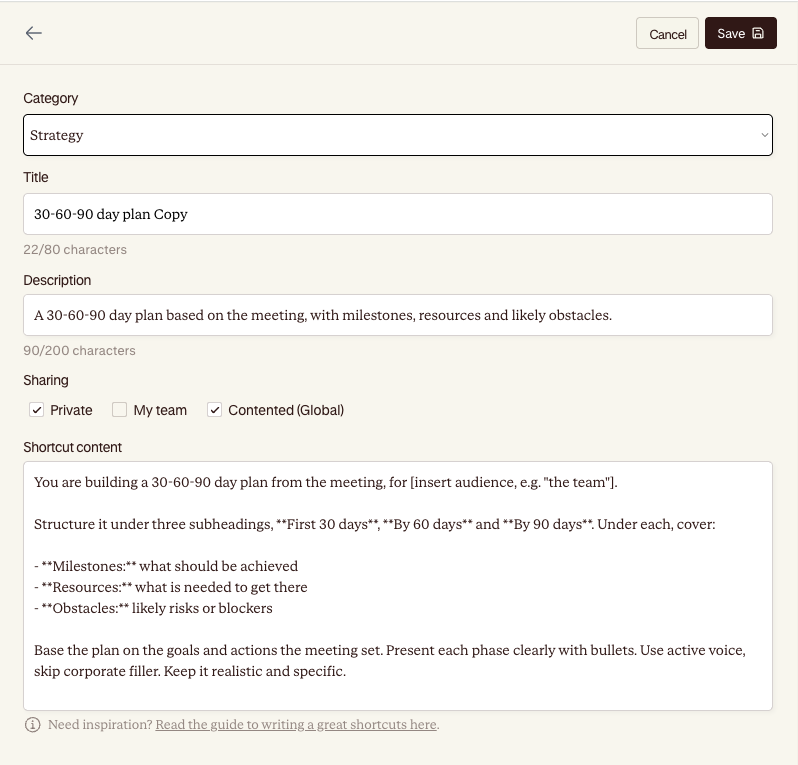
Confirm. A copy lands in My shortcuts, owned by you.
Open your copy and edit it however you like: change the instruction, rename it, make it yours.
The original stays exactly as it was for the rest of the team. Your copy is yours to change.
When to duplicate
You like a team shortcut but want it in your own voice or format.
You want to build on a teammate's shortcut without affecting theirs.
You want to take a Contented shortcut and tailor it to how you work.
Once it's in My shortcuts, it behaves like any shortcut you built from scratch. You can use it, refine it, and if you're on a team plan, share your version back to the workspace too.