Sharing conversations from your mobile phone.
Last updated: June 16, 2026
On the Contented mobile app you can share a conversation with team members the moment you finish recording, directly from the app.
How to share a conversation on your mobile phone.
When your recording ends, it'll upload automatically to your workspace, as usual.
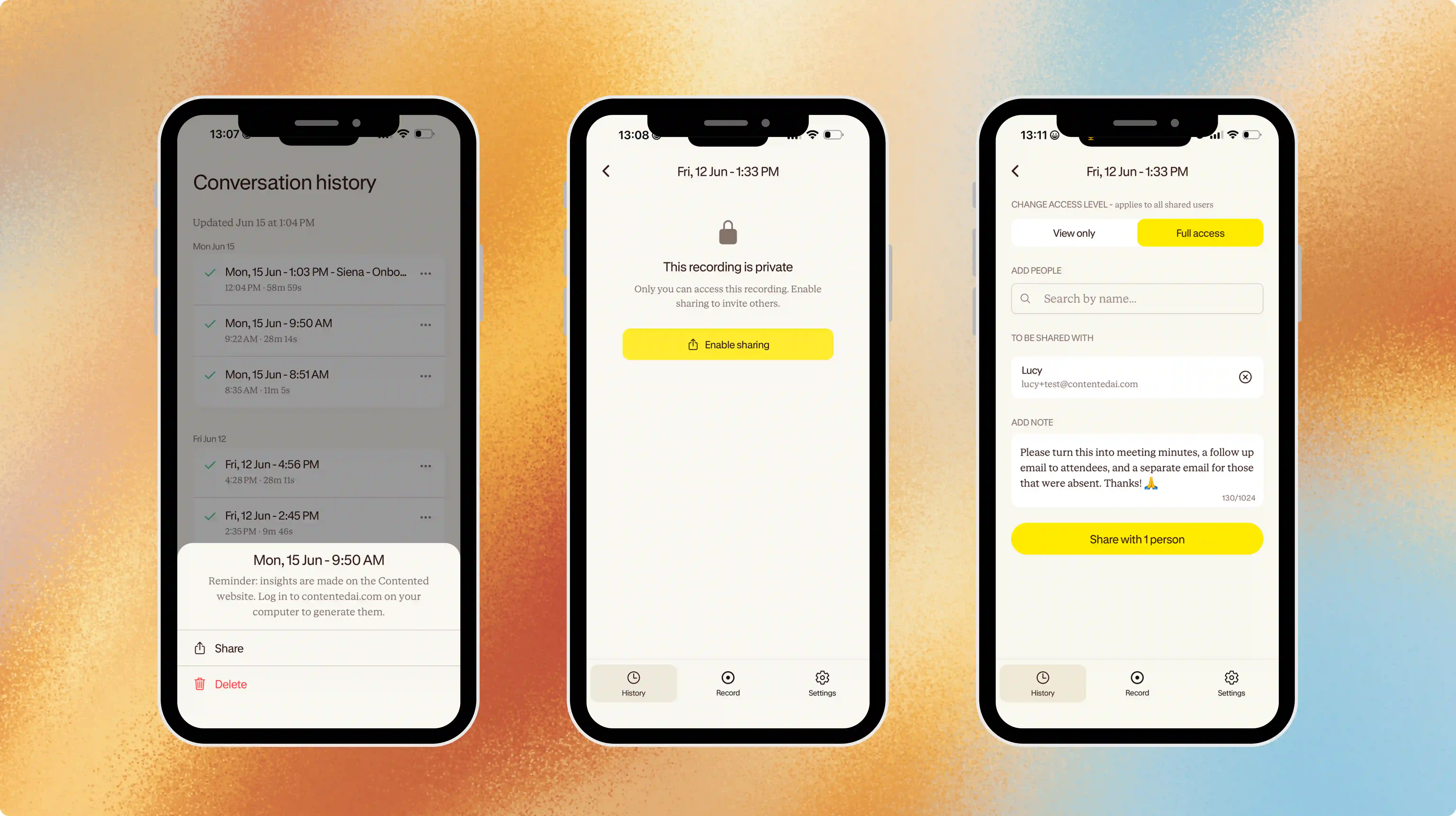
Once the recording has successfully uploaded (green tick) you can tap the ... to open options to Share or Delete.
Click Share, and you'll see the current permissions on the recording. If it's set to private, you can enable sharing.
Choose the type of access you want team members to have for this recording (more details on those options below).
Search and select team members, and then tap a person's name to add them.
They'll appear under the 'To be shared with' list. You can add multiple people this way. Note that you can only share with other team members of your workspace.
You have the option to add a note about what you're sharing and what you'd like them to do with the recording.
Hit share. Voila. They'll get an email letting them know you've shared it with them.
If you're the owner of the recording, you can go back at any time and remove access by clicking the 'x' next to names.
Sharing from your mobile app applies only to recordings made on the mobile app. If your recording was made on desktop or uploaded directly into your workspace, you'll need to share it on the web app.
Permissions for shared conversations.
Like your Contented workspace, there are two types of permissions for access, view only and full access.
It's important to note that your permission choice applies to all users you share with. It's not possible to give one person full access, and another view only. Changing the access changes it for everyone.
The differences are:
View only: Users can view the chapter summary, and create insights from the conversation.
Full access: Users can view, edit, rename, share the recording to other users, download the recording and transcript. Note: Once a conversation is shared, any edits from those that have access are applied for all viewers and cannot be reversed.
If the original owner of a recording deletes it, it is deleted for all recipients, even if they had duplicated it. This is consistent with how sharing works across Contented.