Upload existing recordings in the Contented mobile app.
Last updated: October 5, 2026
The Contented mobile app lets you upload existing audio and video recordings directly from your phone. This is useful if you've already recorded a phone call, voice memo, meeting or screen recording and want to process it in Contented.
How to upload a recording on iOS.
Step 1: Open Conversation history.
Open the Contented mobile app and go to your Conversation history.
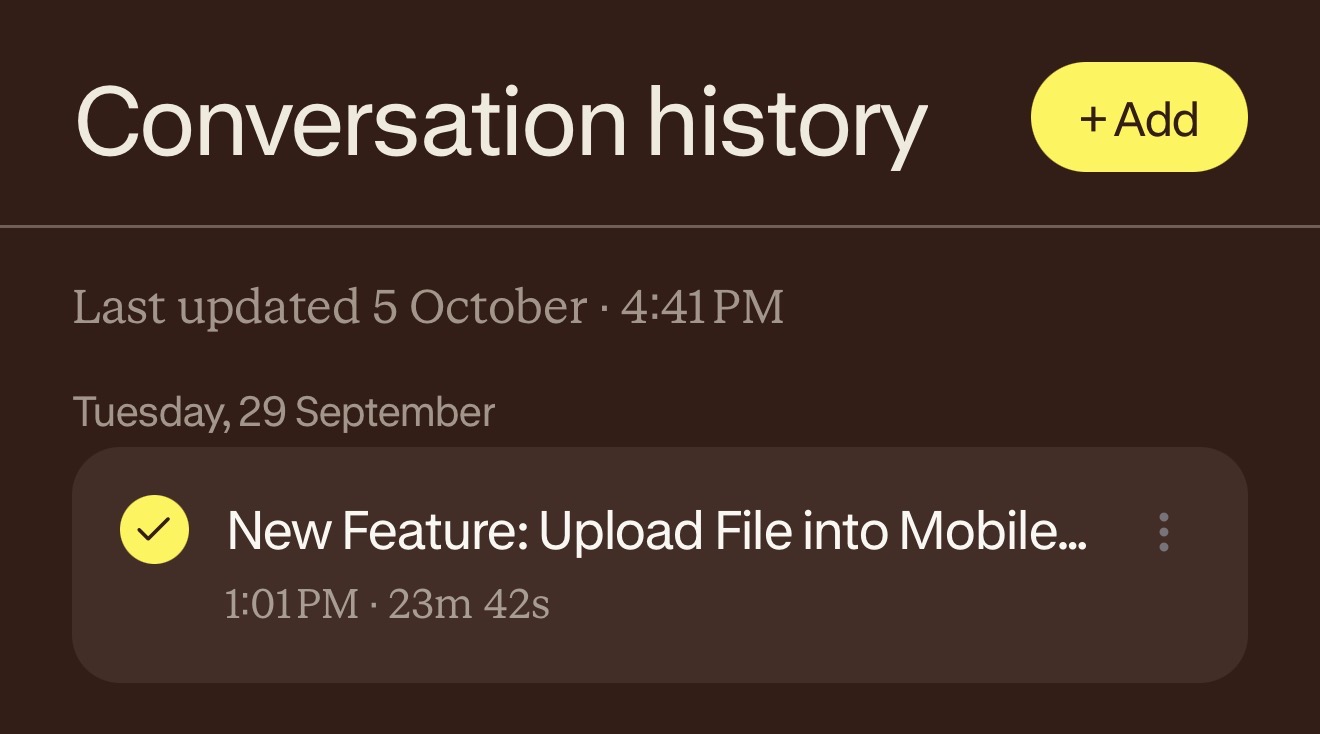
Step 2: Tap + Add.
Tap the yellow + Add button in the top right corner of the screen.
The Add a conversation menu will appear from the bottom of the screen.
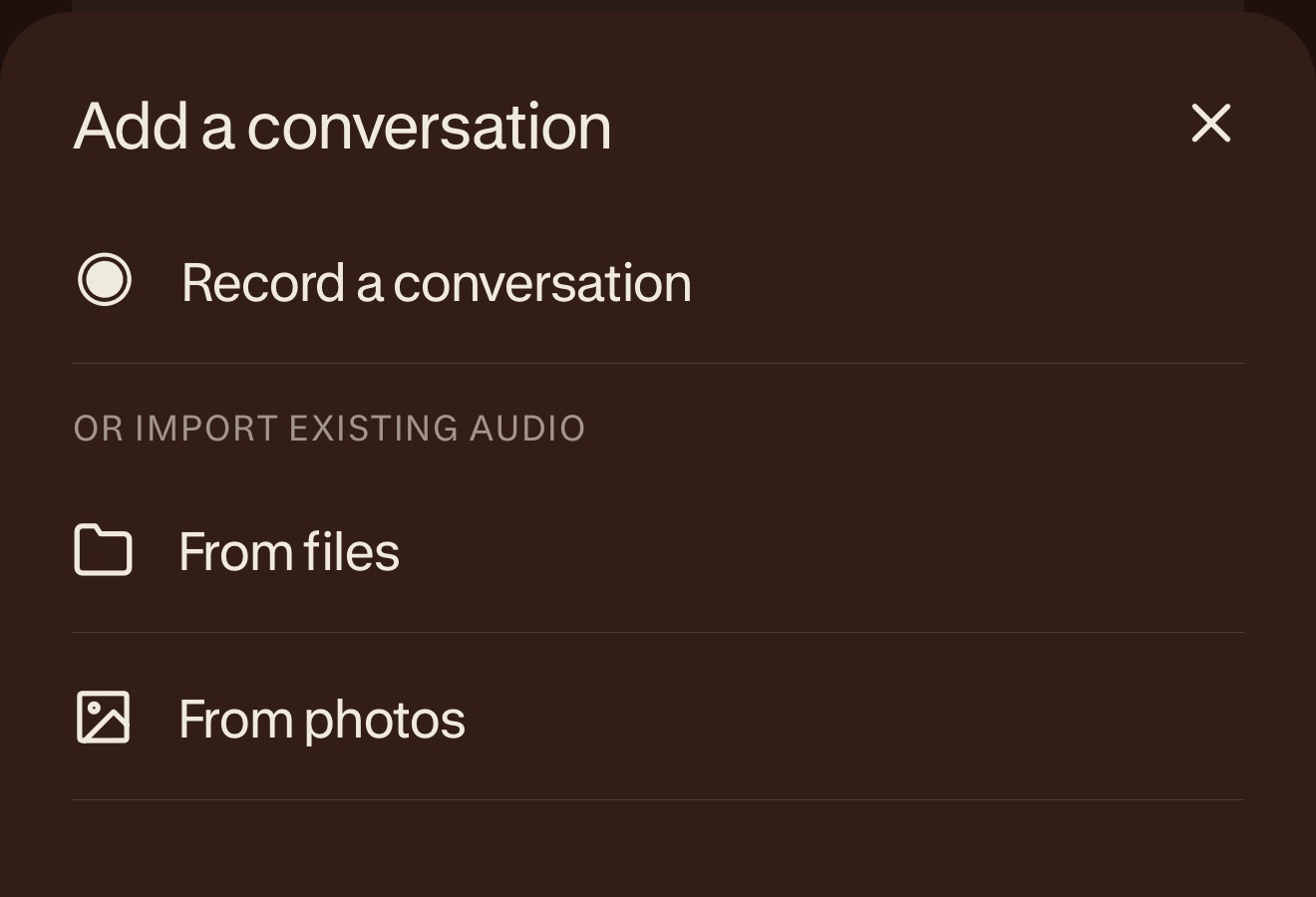
Step 3: Choose where you'd like to upload from.
Under OR IMPORT EXISTING AUDIO, choose:
From files to browse and select a file saved on your device.
From photos to select a video from your photo library.
Step 4: Select your recording.
Find and select the audio or video file you'd like to upload.
Once selected, the Name this recording prompt will appear.
Step 5: Name your recording.
Enter a name for the recording, then tap the yellow Save button.
The recording will be added to the top of your Conversation history and will begin uploading and processing.
How to upload a recording on Android.
Step 1: Open Conversation history.
Open the Contented mobile app and go to your Conversation history.
Step 2: Tap + Add.
Tap the yellow + Add button in the top right corner of the screen.
The Add a conversation menu will appear from the bottom of the screen.
Step 3: Choose where you'd like to upload from.
Under OR IMPORT EXISTING AUDIO, choose:
From files to browse and select a file saved on your device.
From photos to select a video from your photo library.
Step 4: Select your recording.
Find and select the audio or video file you'd like to upload.
Once selected, the Name this recording prompt will appear.
Step 5: Name your recording.
Enter a name for the recording, then tap the yellow Save button.
The recording will be added to the top of your Conversation history and will begin uploading and processing.
Share a recording directly to Contented.
Some apps allow you to share audio or video files directly into Contented without opening the app first.
Open the app where your recording is saved.
Find the recording you'd like to upload.
Tap Share.
Select Contented from the available sharing options.
Give the recording a name and process the upload.
Direct sharing has been tested with:
Slack voice notes
Native Voice Memos
Screen recordings saved to your device
Not all apps support direct sharing. Facebook and Instagram do not currently support direct sharing into Contented.
If Contented doesn't appear as an option, save the recording to your device and upload it using the steps above.
Supported file types.
Contented currently supports the following file formats:
Type | Supported formats |
|---|---|
Audio | MP3, WAV, MP4A |
Video | MP4, MOV |
When you upload a video file, Contented extracts and uses the audio only. The video itself will not be playable within Contented.
File size and length limits.
Limit | Maximum |
|---|---|
File size | 1.5 GB |
Audio length | 20 hours |
Video length | 9.5 hours |
Additional information.
Uploading does not delete the original file.
Uploading a recording to Contented does not remove the original file from your phone. If you'd like to delete it after uploading, you'll need to do this separately.
Phone calls need to be recorded first.
Contented does not record phone calls directly. If your phone has a native call recording feature, you can use this to record the call and then upload the saved file to Contented.
You don't need Mobile Insights to upload recordings.
You can still upload and process recordings if your organisation doesn't have Mobile Insights enabled. You simply won't be able to create insights from the recording on your phone.
Error messages.
If something goes wrong during upload, Contented will display an error message to let you know what happened.
Error | What it means |
|---|---|
Unsupported file type | The file format is not compatible. Check the supported formats listed above. |
File too long | The recording exceeds the maximum length for that file type. |
Troubleshooting.
My file won't upload.
Check that the recording is in one of the supported formats and is within the file size and length limits listed above.
I'm having trouble uploading a file from iCloud.
If you're uploading a file stored in iCloud and experience an issue, please contact the Contented support team.