Recording a phone conversation
Last updated: April 16, 2026
You've told us you want to get even more out of Contented and one of the biggest requests has been the ability to record phone calls to generate insights and outputs.
We cannot record a phone call directly through Contented, however modern phones allow for phone call recording that can then be easily uploaded to Contented.
This page covers three ways to record a phone call:
Through the Contented desktop app
On a mobile device
iOS (iPhone)
Android
1. Recording through the Contented desktop app (currently in beta testing)
We've given a small group of customers early access to the Contented desktop app (in beta testing) before it launches to everyone in May. If you're part of that group, and have the Contented app installed on your desktop, simply put your call on speaker and record straight through the app.
Interested in getting early access? Let us know at support@contentedai.com and we'll get you set up.
2. Recording phone calls on your mobile device
iOS (iPhone)
Step 1: Record the call
You do not need to do any prep work; just start your call as usual.
While on an active call, tap the More (...) button on the call screen.
Select Call Recording.
Wait for the prompt: A "This Call Will Be Recorded" notification will countdown (3... 2... 1...). Note: Both parties will hear an automated announcement that the recording has started.
Once finished, tap the Stop button (the red square) or simply hang up.
Step 2: Save the audio files
Tap the View Saved Call banner that appears after the call, or open the Notes app and find the Call Recordings folder.
Locate the specific call note and tap the waveform/audio bubble.
Tap the three dots (...) or the Share icon within that audio bubble.
Select Save Audio to Files. Choose a location (like "On My iPhone" or "iCloud Drive") and tap Save.
Step 3: Upload to Contented
Open your browser (e.g., Chrome or Safari) and navigate to your Contented workspace.
Tap the Click to Upload button.
Select Choose File (or Files) from the pop-up menu
Go to the Recents tab or browse to where you saved the audio in the previous step.
Tap the file (usually named Call Recording.m4a). Wait for the "Uploading" progress bar to hit 100%.
Pro Tip: Contented accepts mp4, m4a, mp3, or wav. Since iOS defaults to .m4a, you are don't need to do any conversion.
How to record phone calls on an iPhone - demo | 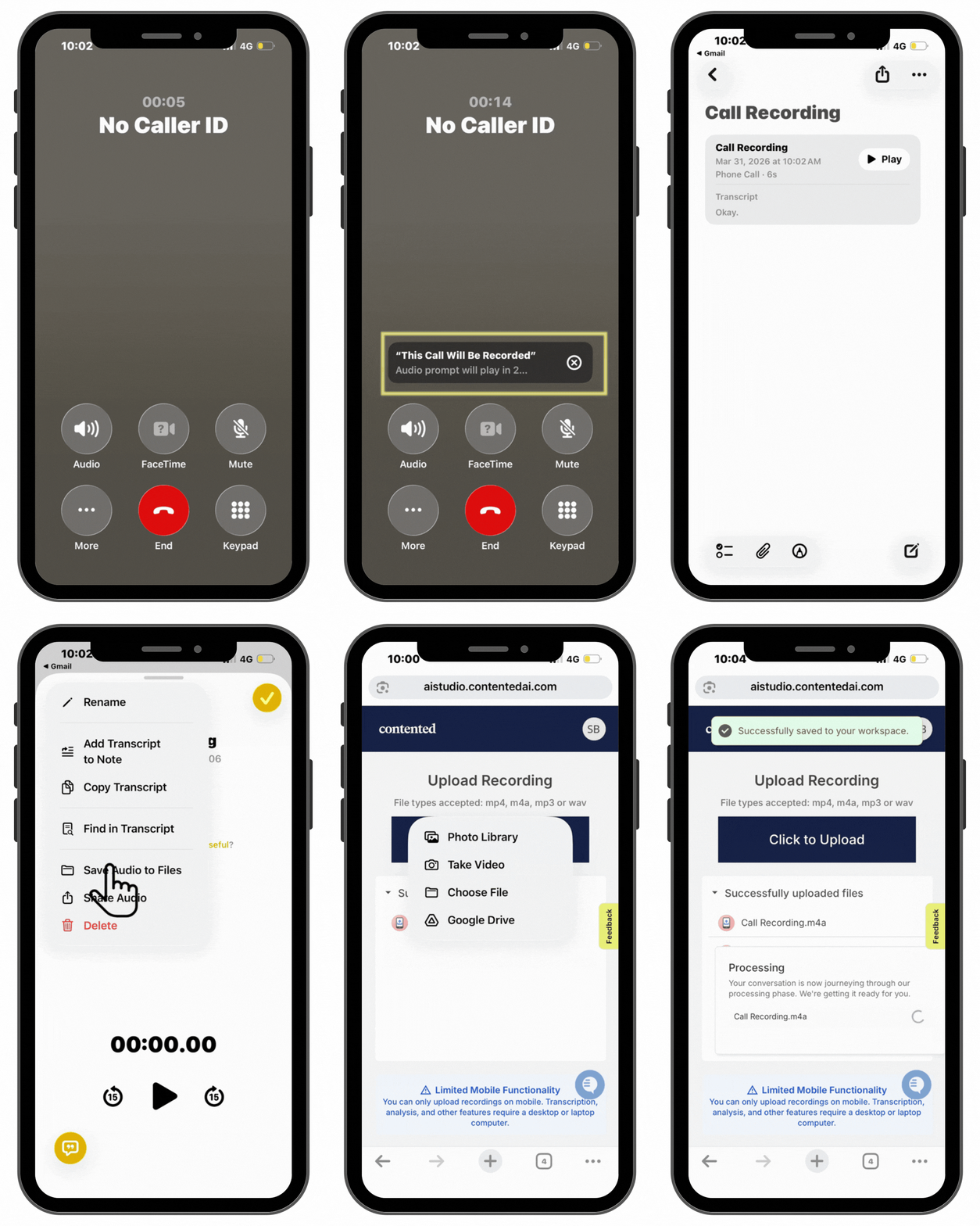 |
Recording phone calls on android devices
Step 1: Record the Call
You do not need to do any prep work; just start your call as usual.
While on an active call, use one of the following methods based on your device:
Built-in recorder: Tap the Record button on the call screen (available on Samsung, Google Pixel, OnePlus, Xiaomi, and similar devices)
Google Phone app: Tap the Record button that appears during the call (if enabled in settings)
Third-party app: Open your recording app (e.g., Cube ACR or Boldbeast Recorder) before or during the call
Note: Depending on your device and region, both parties may hear an automated announcement that the recording has started.
Once finished, tap the Stop button or simply hang up.
Step 2: Save the Audio to Files
Recordings are usually saved automatically, but you will need to locate the file before uploading.
Open your Files app (or My Files on Samsung) and browse to your Call Recordings folder, or check your Voice Recorder app for saved recordings.
Locate the specific recording by date and time.
Tap and hold the file, then select Share or Move to copy it to a location easily accessible from your browser, such as Google Drive or Downloads.
Step 3: Upload to Contented
Open your browser (e.g., Chrome) and navigate to your Contented workspace.
Tap the Click to Upload button.
Select Choose File (or Files) from the pop-up menu.
Browse to where you saved the audio in the previous step.
Tap the file to select it and wait for the Uploading progress bar to hit 100%.
How to record phone calls on an android - demo | 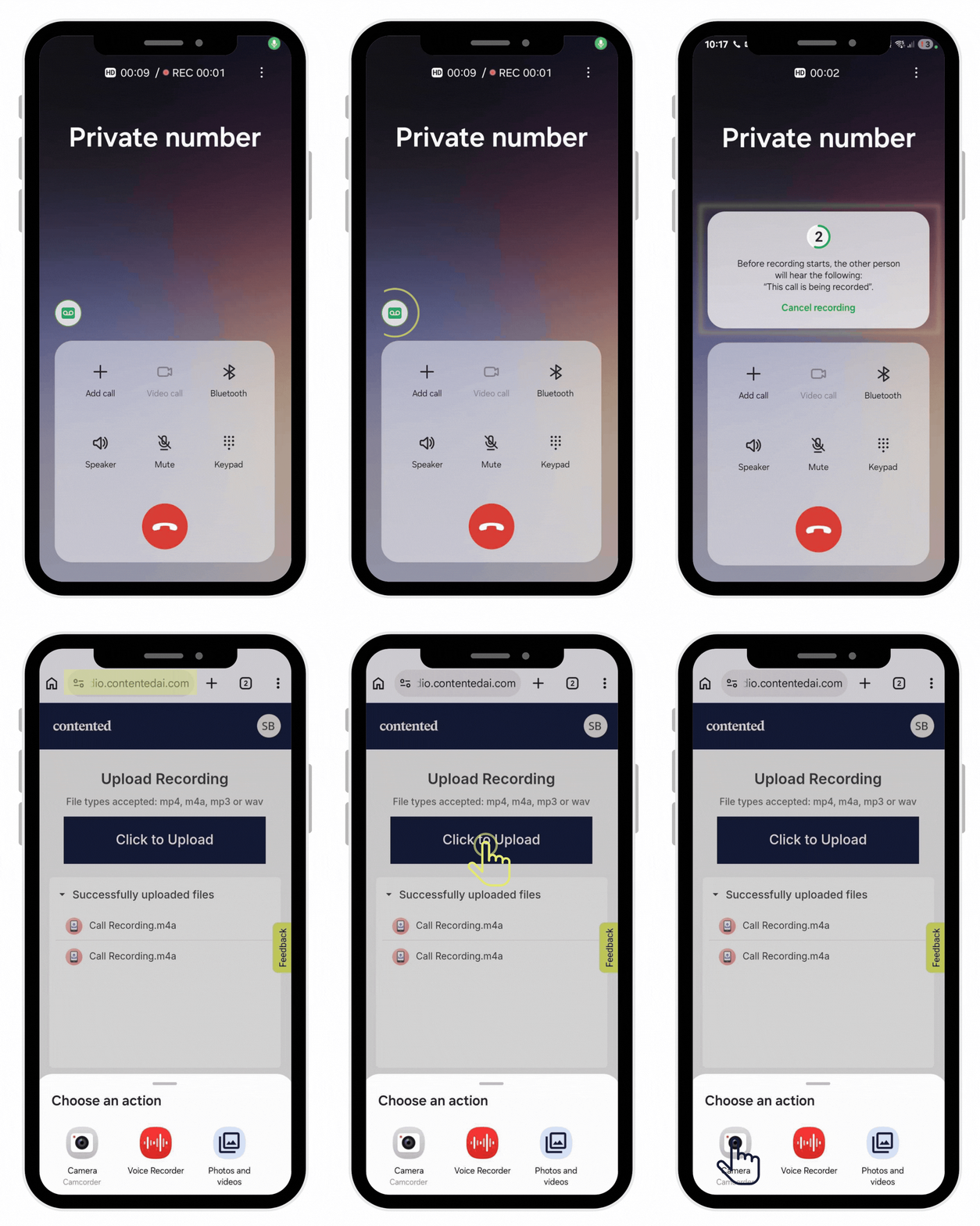 |