Create insights in the Contented mobile app.
Last updated: September 3, 2026
The Contented mobile app includes a feature called mobile insights, which lets you generate quick outputs from conversations you've recorded on your phone. Whether you're at a conference, between meetings, or on-the-go, you can create a summary or action items and share them straight from your app.
How to use mobile insights.
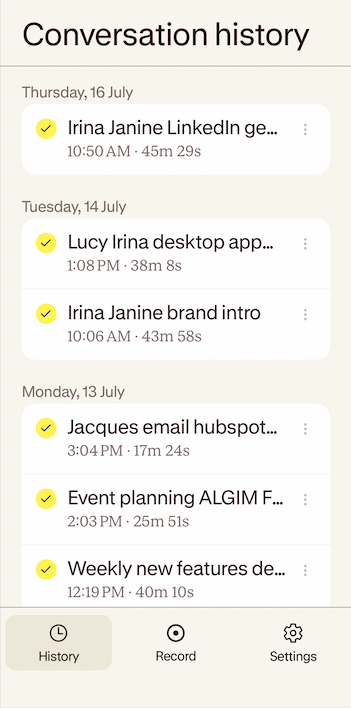
Step 1: Open your conversation.
In the Contented mobile app, go to your list of conversations and tap on the one you'd like to create insights from.
Step 2: Open the insights panel.
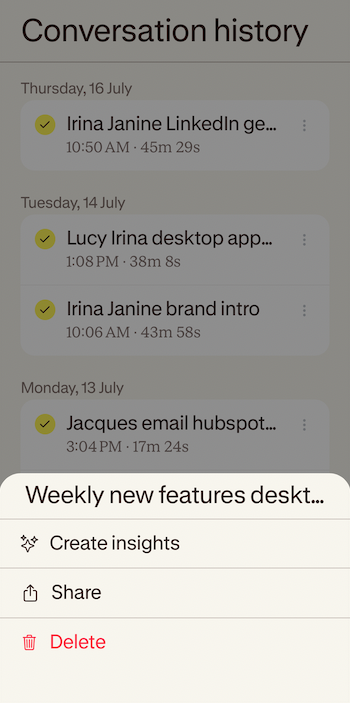
A pop-up will appear from the bottom of the screen with the options Share and Create insights. Tap Create insights.
Step 3: Choose a template.
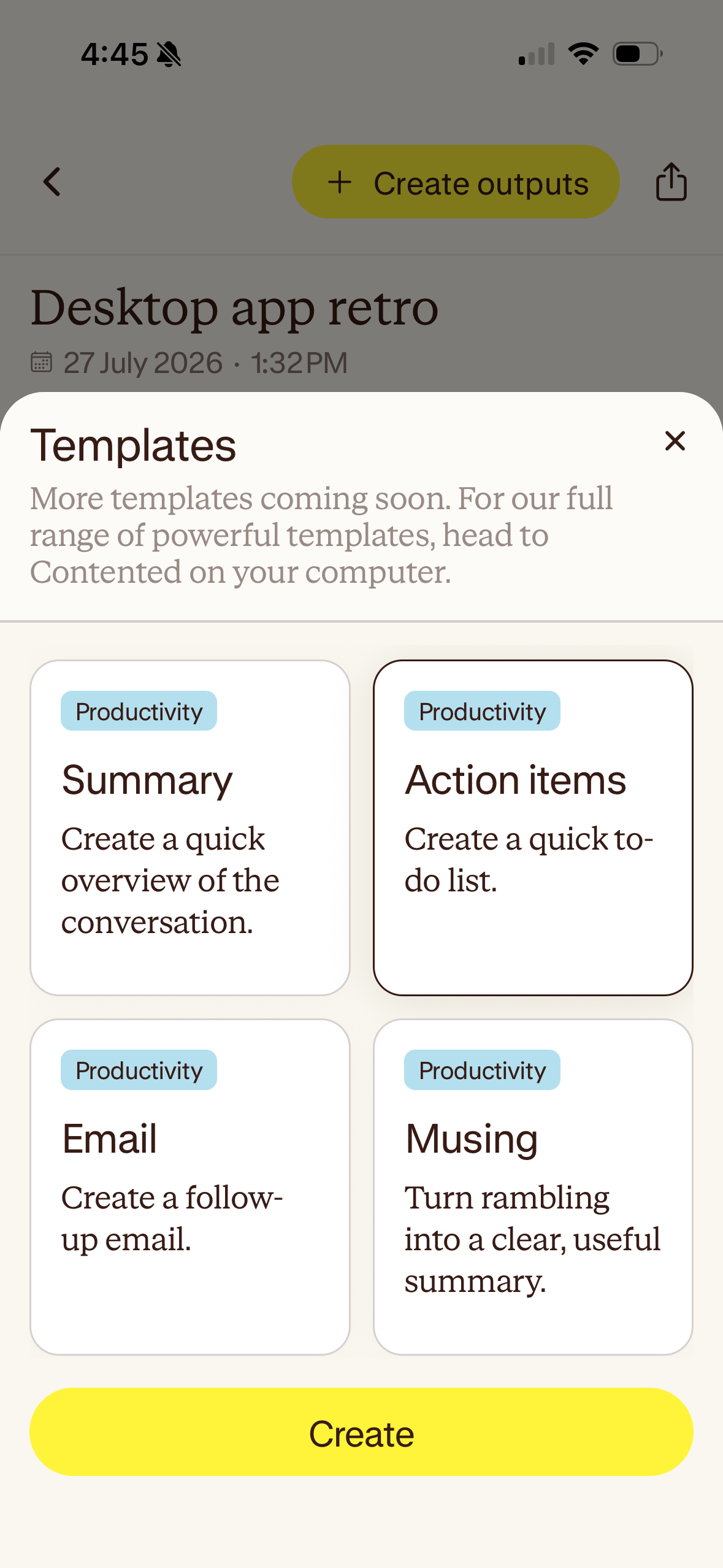
Choose from the available templates (more are being added all the time):
Summary
Action items
Email
Musing (one speaker)
Select the template you'd like to use, then tap Create.
A quick summary is also generated automatically regardless of which template you select.
Step 4: View your output.
The content will load on screen. From here, you can create additional insights using the Create outputs option at the top of the page.
Step 5: Share or copy what you've made.
Tap the share button to choose how you'd like to use your output. Your options are:
Copy
Email
More sharing options (opens your phone's standard sharing menu).
Additional information.
Insights are not saved.
When you leave the page, your insights will not be stored. Make sure you share or copy your output before navigating away, if you want to keep it. You'll see a reminder message each time you leave, with a checkbox to turn off future reminders if you prefer.
Mobile insights only works with mobile recordings.
This feature is only available for conversations recorded on the mobile app. Recordings made on your Windows app will not appear in your mobile app and cannot be used to generate mobile insights.
No data is stored on your device.
All processing happens in the cloud and the results are sent back to your phone. Your recordings are not stored locally.
Your phone's security protects your insights.
The Contented app supports biometric login (such as Face ID), which adds a layer of protection. If your organisation uses SSO, that login method is also supported.
Speaker labelling and attendee details are not available on mobile.
The templates are designed to produce quick outputs without this information, so you don't need to add it before generating insights.
If you generate an insight on your phone, it cannot be transferred to your desktop.
You can send it to yourself via email or copy it, but generating the same insight on desktop will create a new version rather than retrieving the one made on your phone.
Troubleshooting.
I can't see the Mobile insights option.
Make sure you have the most recent version of the Contented app installed. If you've updated and still can't see it, try closing the app fully and reopening it.
Formatting looks off when I send an insight via email.
If you're using Gmail, you may notice that formatting does not display as expected when using the Email sharing option. As a workaround, use the Copy option instead and paste the content into your email manually.