Getting started with Contented
Last updated: June 16, 2026
What is Contented?
Contented is your AI-powered workspace that turns recorded conversations into structured, business-ready documents and insights, instantly.
What can I use it for?
Everything. Use Contented to transform meetings, strategy sessions, musings, workshops (and even chats with your grandma) into summaries, motivation maps, action lists, reports, and ready-to-share documents. There are 50+ templates to choose from. And here you were thinking it’s just a note-taking tool.
Sign up and log in
You’ll be emailed a link to your company’s Contented workspace. Please get in touch with your admin for this link.
Sign up using your company email.
Set a password that you’ll remember (this seems obvious but you’ll need it again very soon for the mobile app).
Once logged in, you’ll know you’re in the right place because your company name will be visible in the Contented workspace.
Bookmark your workspace in your browser.
Good to know: Your workspace is private to you. By default, other users in your team can’t see your conversations.
Download the app
You’ll record your conversations and meetings using Contented’s app.
Install the Contented app on iPhone here or Android here.
Or scan the QR code on your phone's camera

Log in using the same email and password you used to access the workspace.
Good to know: Recordings aren’t stored on your phone, so you don’t need to worry about storage or privacy. When you finish recording, your conversations automatically sync to your workspace where they live securely.
Test it out
Record a musing about your day. It doesn’t matter what you talk about, but it’s a good idea to record for 5 minutes or more in order to get a good idea of how Contented works.
Open the app and hit the record button.
When you’re done, hit stop.
Name the recording in a way that’ll help you recognise it later.
Press upload and wait for the green tick to show its been uploaded. If the upload fails, simply hit retry.
Once uploaded, your conversation will be available in your Contented desktop workspace. You’ll also receive an email once processing is complete, with a direct link to your conversation.
Create content
Turn your recording into content in your desktop workspace.
From the home screen of your workspace, select the conversation.
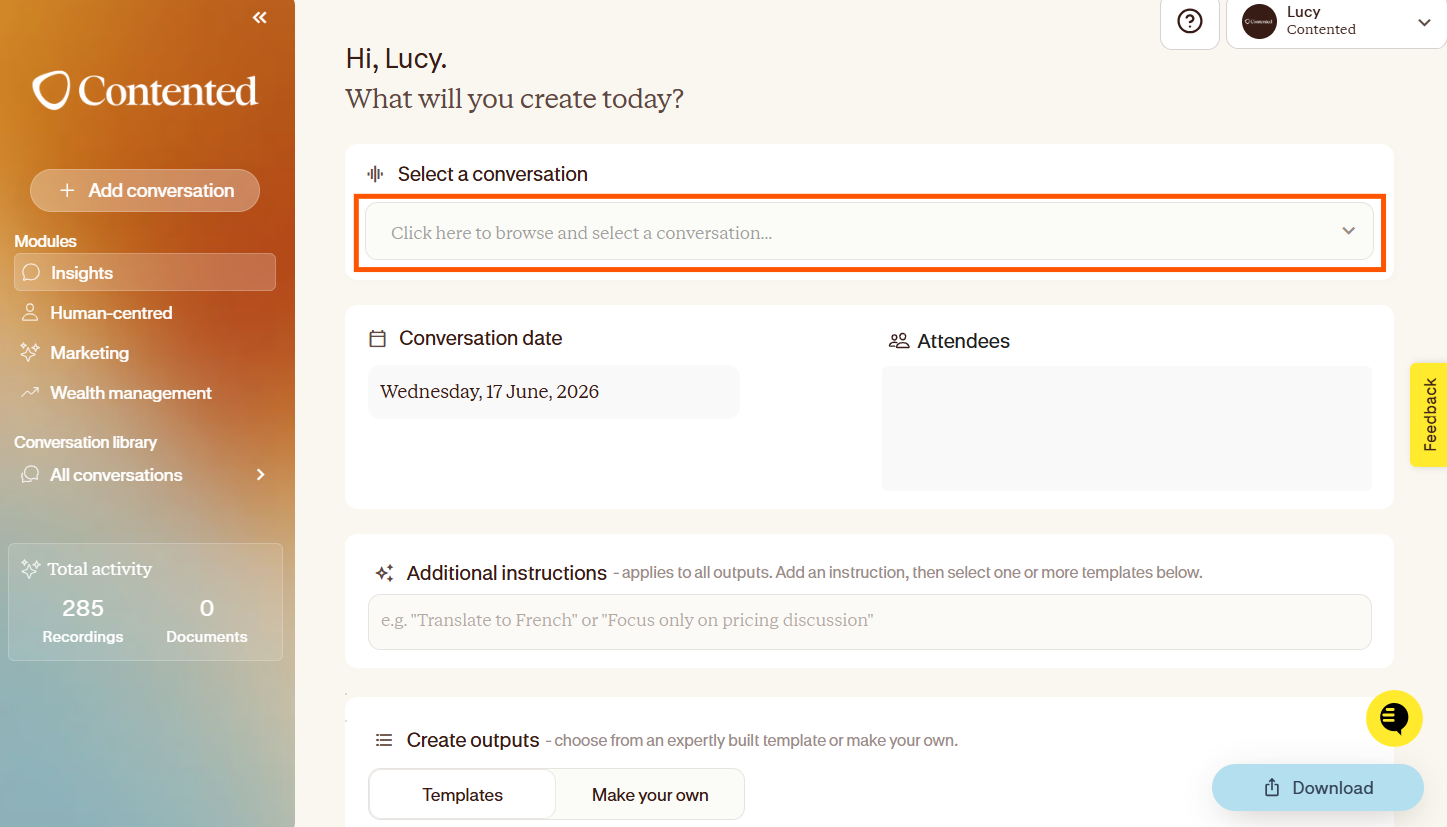
Scroll down to select a template to apply to your conversation.
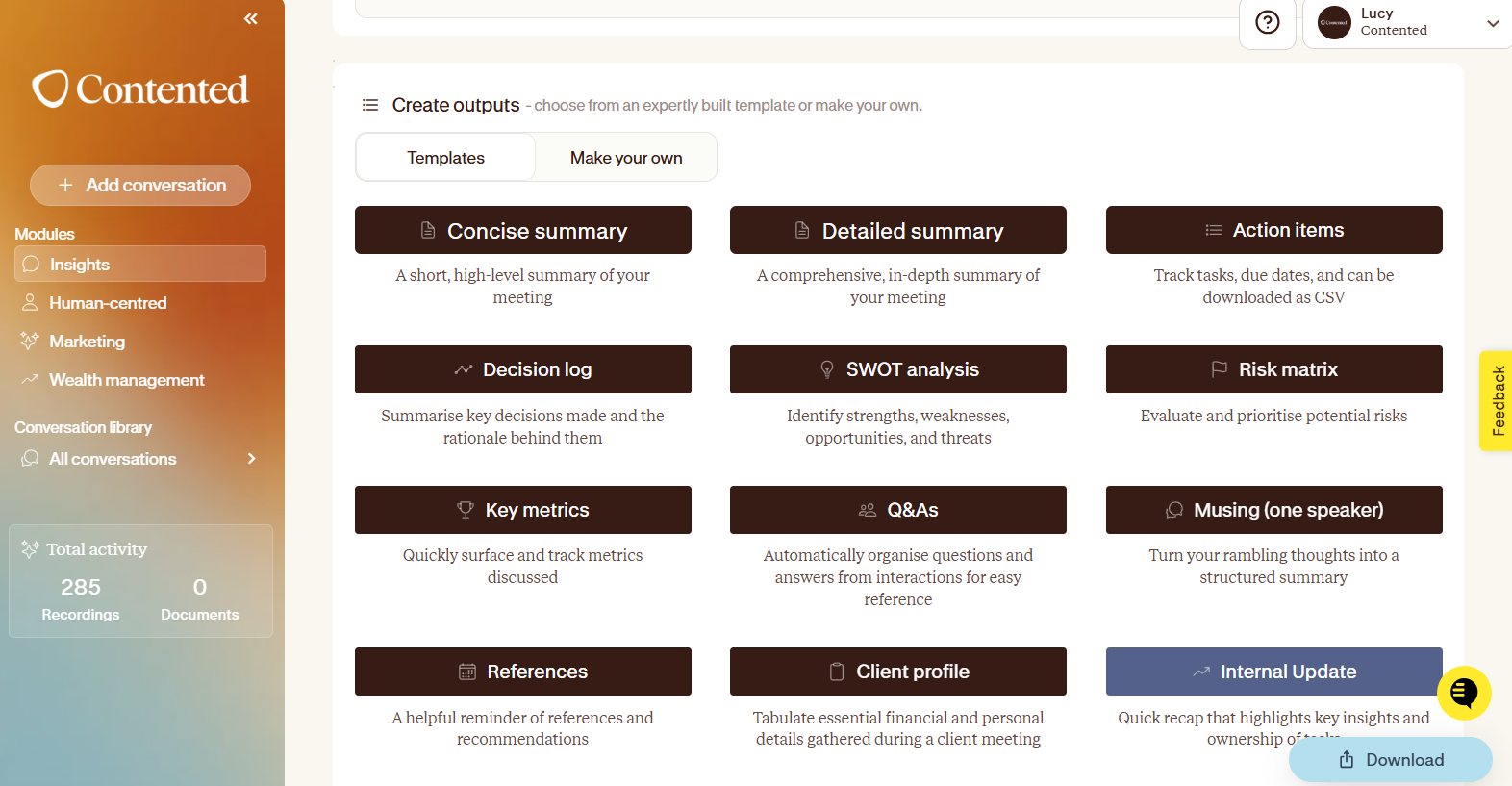
You can select multiple templates to generate simultaneously.
Download it
Save the incredible things you’ve made from your recording.
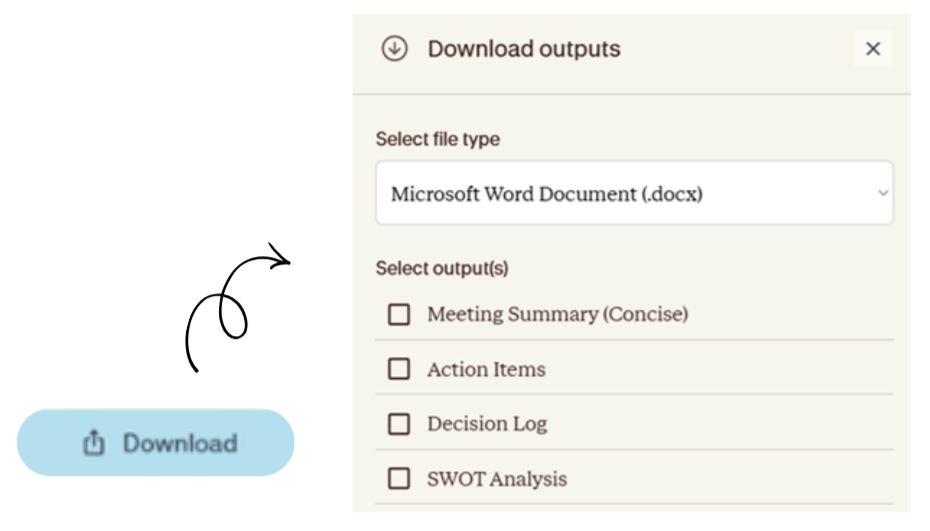
Click the “Download” button on the bottom, right of your screen.
Select between a Microsoft Word document or a PDF.
Tick the outputs you’d like to save, and click download at the bottom of the window.
They’ll all save to your computer.
Good to know: What you create from your recording doesn’t live in your Contented workspace. Your recordings do, but anything you produce from within modules is only there at the time you generate it. If you refresh, or return to Contented later, they’ll need to be created again, so it’s best to download things as you go.
You’re up and running. You’ve just:
Recorded a conversation.
Generated insights.
Downloaded them.
Nice work! You’re now ready to be even more Contented.
Once you're feeling confident generating your first output, you're ready to level up your Contented skills:
Label speakers in your conversations to make outputs clearer and more accurate
Review entities mentioned in your conversation to enhance the detail of your outputs
Use Shortcuts to customise your outputs - instead of relying on the standard buttons in your workspace, simply tell Contented exactly what output or insights you're after, in your own words
Read our Contented onboarding guide to find out how:
Further help & support
The fastest way to get support is through the Contented support widget in your Contented workspace. Search our knowledge base for answers, or chat directly with the team to ask questions and troubleshoot.
