Organise your conversation library with projects
Last updated: May 8, 2026
Group your conversation recordings and transcripts by theme, team, project or customer for easy access.
To create a new project
Go to your conversation library
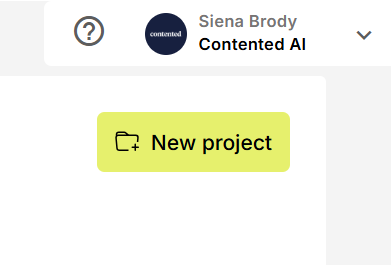
Click the 'New project' button in the top right of your library.
Choose a name for your new project, and click 'Create'
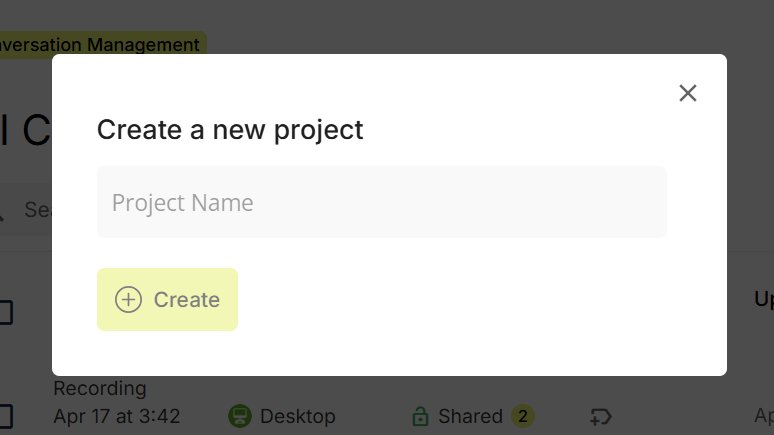
Your project will now be listed under 'Conversation library' on the left.

Add a conversation into a project
Go to your conversation library and find the conversation you want to add.
Click the three dots (...) to the right of it.
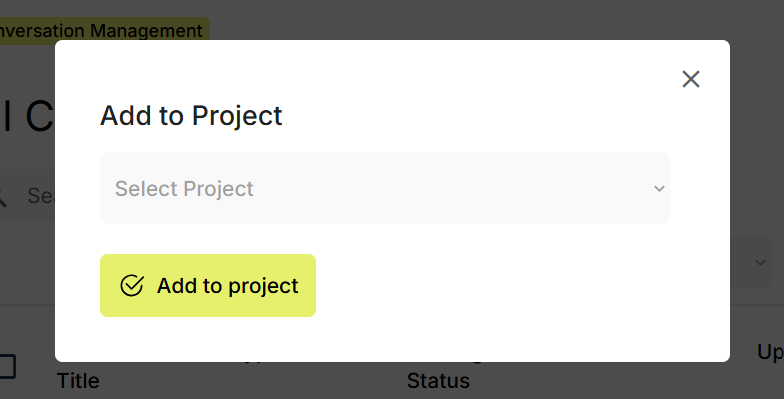
Select 'Add to project'.
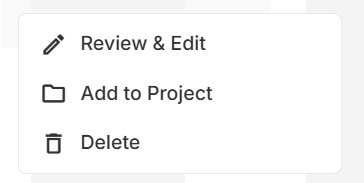
Choose an existing project from the dropdown menu. Your selected conversation will now appear in that project as well as remaining in 'All conversations'
Add multiple conversations into projects
Go to your conversation library and find the conversations you want to add.
Tick the boxes next to the conversations you want to add to a project.
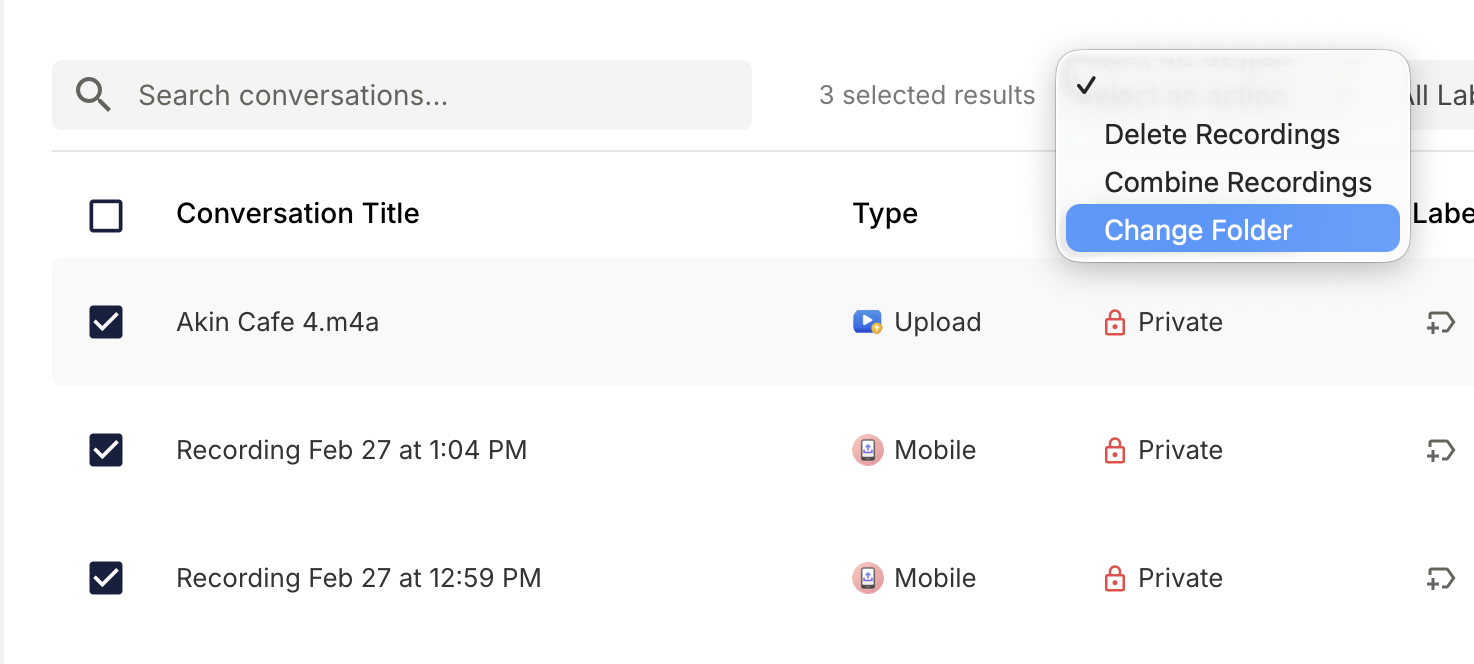
Click 'Select an action' at the top of the library.
Choose 'Add to project' from the dropdown and select an existing project. Click 'Select'.
All the selected conversations will live in both the conversation library (the recording's "home"), and the project.