Updated ermission Settings Feature
Last updated: May 5, 2026
Give teammates full access to your recordings so they can edit, manage and collaborate with ease.
What's new
You now have two sharing options when you share a recording:
View only access (existing option)
Recipients can view the recording and create outputs
They cannot edit the transcript or download files
Full access (new option)
Generate insights and outputs
Edit the transcript
Download the audio and transcript
Rename the conversation
They have nearly all the same permissions as the original owner
How it works
From the conversation in your conversation library:
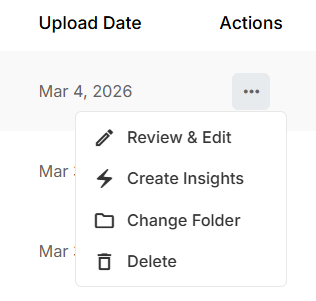
Select the three dots under 'Action'
Click 'Review & Edit'
Click the 'Share' button below the conversation name
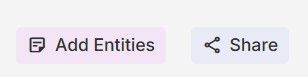
Select '+ Add people or groups'

Search for the person, then click on their name to select them
Once they've been selected, click on the small 'Change access level' button to the right of 'Selected'
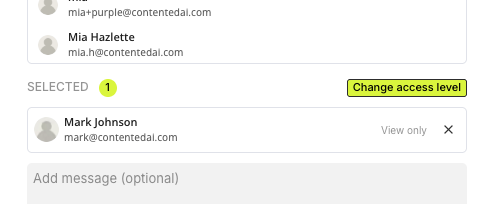
Click on either "View only" or "Full access" from the dropdown menu
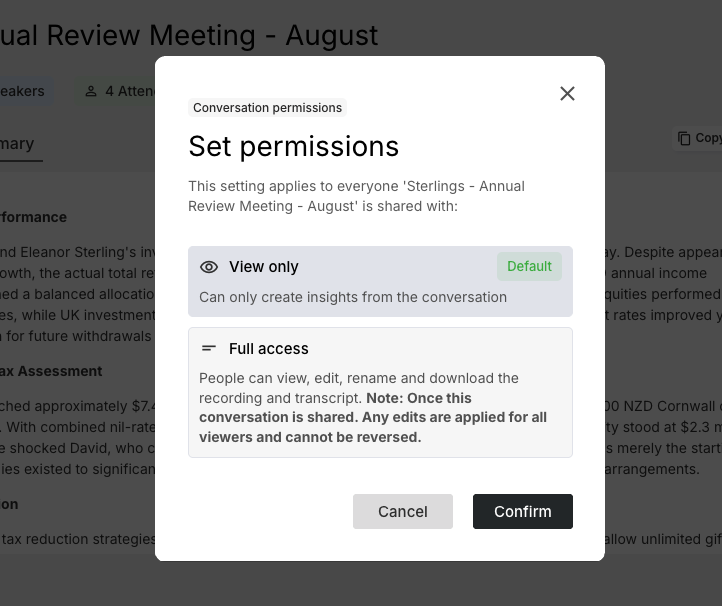
If selected 'Full access' you will need to confirm your understanding
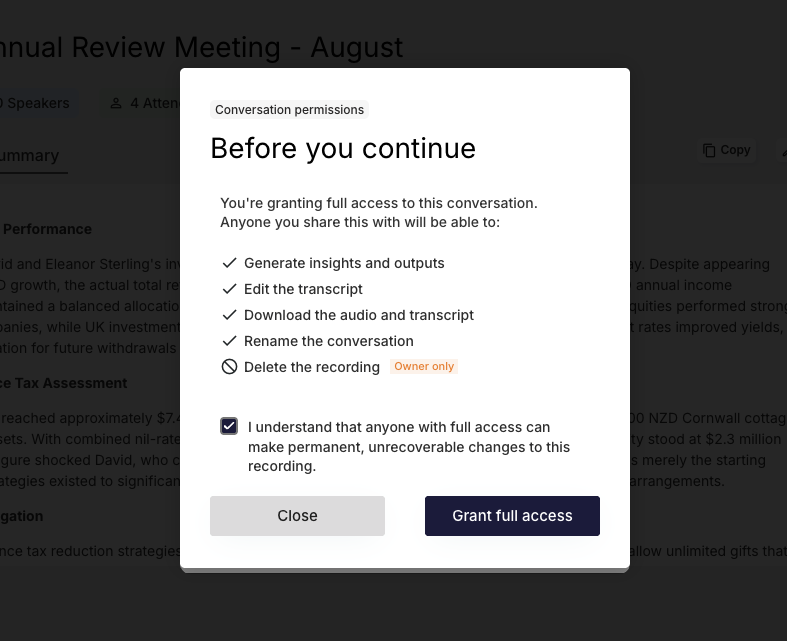
Good to know: The default is "View Only" to ensure your recordings remain secure unless you specifically choose otherwise.
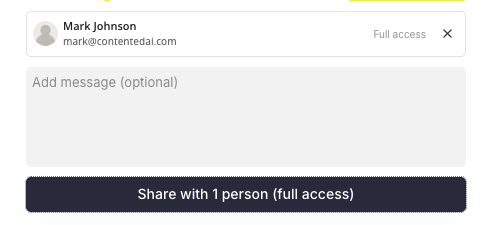
The last step is to then confirm, and include a note if needed and click 'Share with 1 person (full access)'
Important things to know
Security considerations
Full access allows recipients to make permanent changes to your transcript
Any edits made cannot be undone once saved
Recipients with full access can download your audio and transcript files
We strongly recommend only sharing full access with trusted colleagues
Shared editing
When someone has full access, you're both editing the same recording simultaneously
Changes made by either person will be visible to both parties
This works similarly to collaborative editing in Google Docs
If either person renames the recording, it changes for everyone
Deletion rights
Only the original owner can permanently delete a recording
If you remove a shared recording from your workspace, it remains in the owner's account
If the original owner deletes the recording, it's removed from everyone's account
Perfect for teams
This feature is ideal if you:
Have an executive assistant who manages your meeting outputs
Work in teams where colleagues need to edit and process recordings
Need others to add speaker labels or clean up transcripts before creating insights
Getting Started
The updated permission settings are available now in your workspace. Simply navigate to any recording and click share to see the new options.
If you have any questions about using the new permission settings, please don't hesitate to reach out to our support team (support@contentedai.com)