Getting started with Contented
Last updated: October 2, 2026
What is Contented?
Contented is your AI-powered workspace that turns recorded conversations into structured, business-ready documents and insights, instantly.
What can I use it for?
Everything. Use Contented to transform meetings, strategy sessions, musings, workshops (and even chats with your grandma) into summaries, action lists, reports, follow-up emails and ready-to-share documents.
There are 50+ templates to choose from. And here you were thinking it was just a note-taking tool.
Sign up and log in
You’ll be emailed a link to your company’s Contented workspace. If you don’t have this, ask your admin for the link.
Enter your company email address.
We’ll send a 6-digit sign-in code to your email. Enter the code and you’re in.
Once logged in, you’ll see your company name in your Contented workspace.
Bookmark your workspace in your browser so it’s easy to find again.
You can also sign in using Google or Apple.
Good to know: Your workspace is private to you. By default, other users in your team can’t see your conversations.
Download the app
You’ll record your conversations and meetings using Contented’s app.
Install the Contented app on iPhone here or Android here.
Or scan the QR code on your phone's camera

Open the app and enter the same email address you used for your Contented workspace.
Enter the one-time code sent to your email to sign in.
Once you’re signed in, you’ll stay signed in unless you log out or your session expires.
Good to know: Recordings aren’t stored on your phone. Once you finish recording and upload your conversation, it securely syncs to your Contented workspace.
Test it out
Record a musing about your day. It doesn’t matter what you talk about, but it’s a good idea to record for 5 minutes or more in order to get a good idea of how Contented works.
Open the app and hit the record button.
When you’re done, hit stop.
Name the recording in a way that’ll help you recognise it later.
Press upload and wait for the green tick to show its been uploaded. If the upload fails, simply hit retry.
Once uploaded, your conversation will be available in your Contented desktop workspace. You’ll also receive an email once processing is complete, with a direct link to your conversation.
Create content
Turn your recording into content in your desktop workspace.
From the home screen of your workspace, select the conversation.
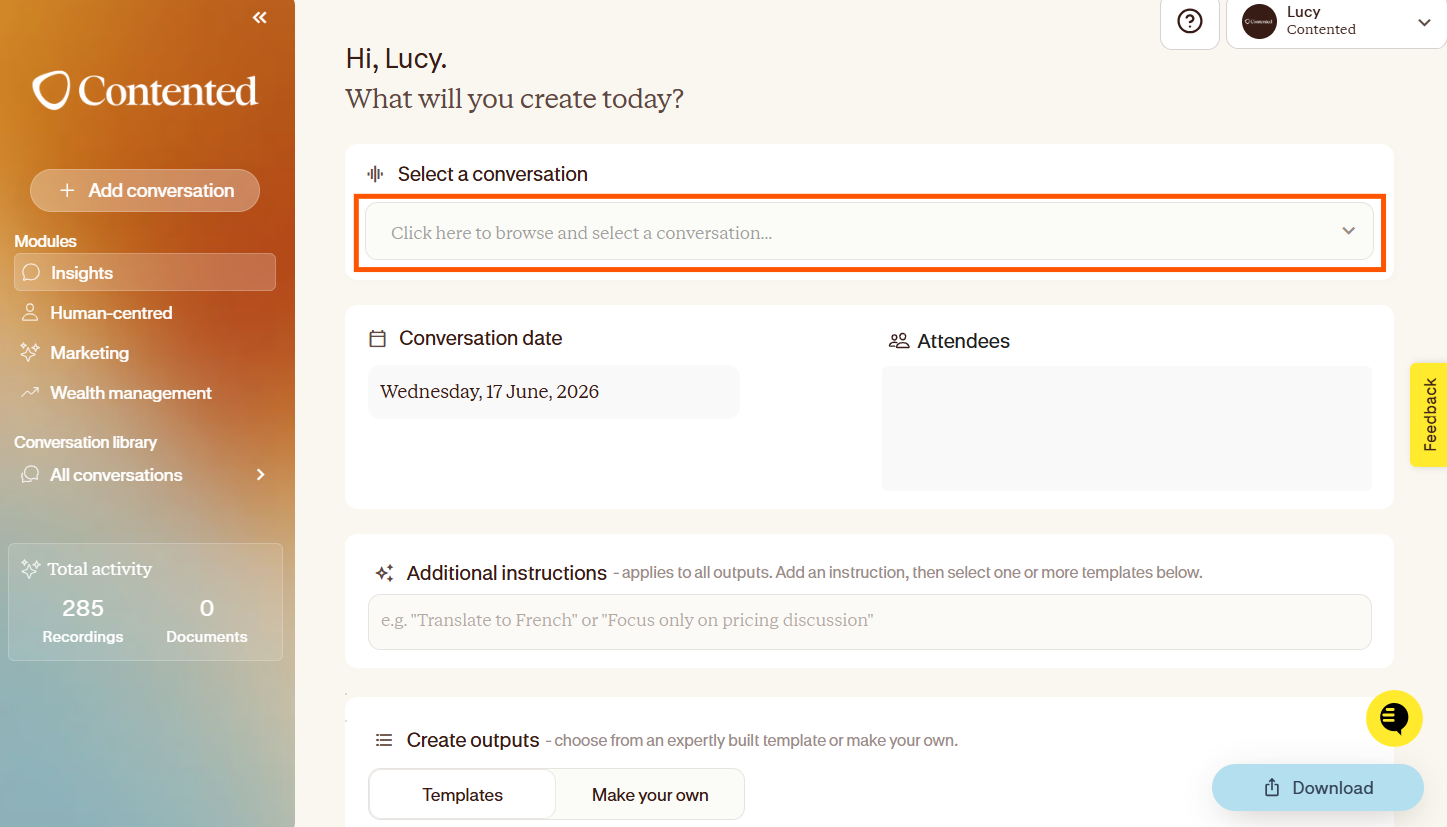
Scroll down to select a template to apply to your conversation.
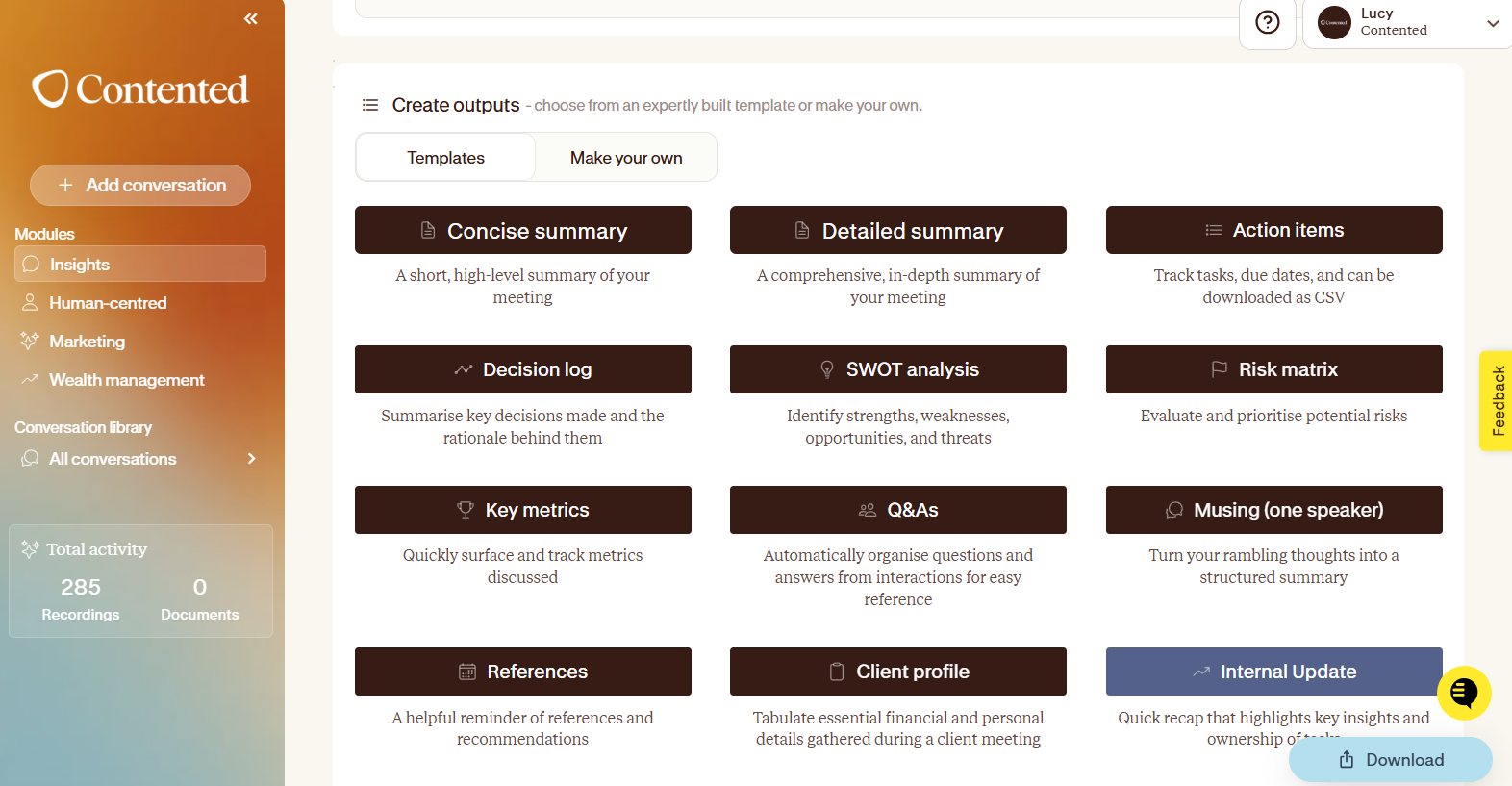
You can select multiple templates to generate simultaneously.
Download it
Save the incredible things you’ve made from your recording.
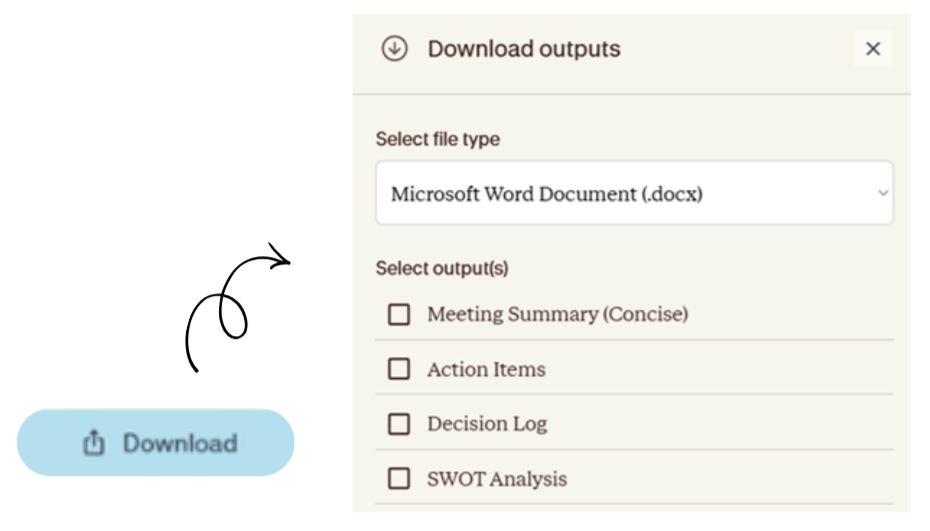
Click the “Download” button on the bottom, right of your screen.
Select between a Microsoft Word document or a PDF.
Tick the outputs you’d like to save, and click download at the bottom of the window.
They’ll all save to your computer.
Good to know: What you create from your recording doesn’t live in your Contented workspace. Your recordings do, but anything you produce from within modules is only there at the time you generate it. If you refresh, or return to Contented later, they’ll need to be created again, so it’s best to download things as you go.
You’re up and running. You’ve just:
Recorded a conversation.
Generated insights.
Downloaded them.
Nice work! You’re now ready to be even more Contented.
Once you're feeling confident generating your first output, you're ready to level up your Contented skills:
Label speakers in your conversations to make outputs clearer and more accurate
Review entities mentioned in your conversation to enhance the detail of your outputs
Use Shortcuts to customise your outputs - instead of relying on the standard buttons in your workspace, simply tell Contented exactly what output or insights you're after, in your own words
Read our Contented onboarding guide to find out how:
Further help & support
The fastest way to get support is through the Contented support widget in your Contented workspace. Search our knowledge base for answers, or chat directly with the team to ask questions and troubleshoot.
