Adding a conversation to your workspace
Last updated: May 29, 2026
Upload an existing audio, video, or text conversation into Contented so you can work with it just like any recording you've made.
What is the Add Conversation feature?
The Add Conversation feature lets you bring existing conversations into your Contented workspace - whether that's a recorded call, a video file, or a pasted text transcript. Once uploaded, you can interact with it just like any conversation you've recorded directly in Contented.
How to add a conversation
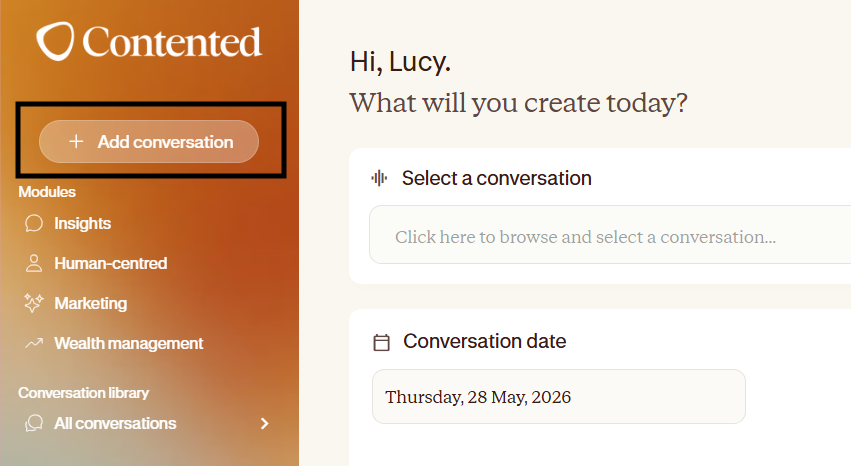
From your desktop workspace:
Click the 'Add conversation' button in the top left corner of your workspace.
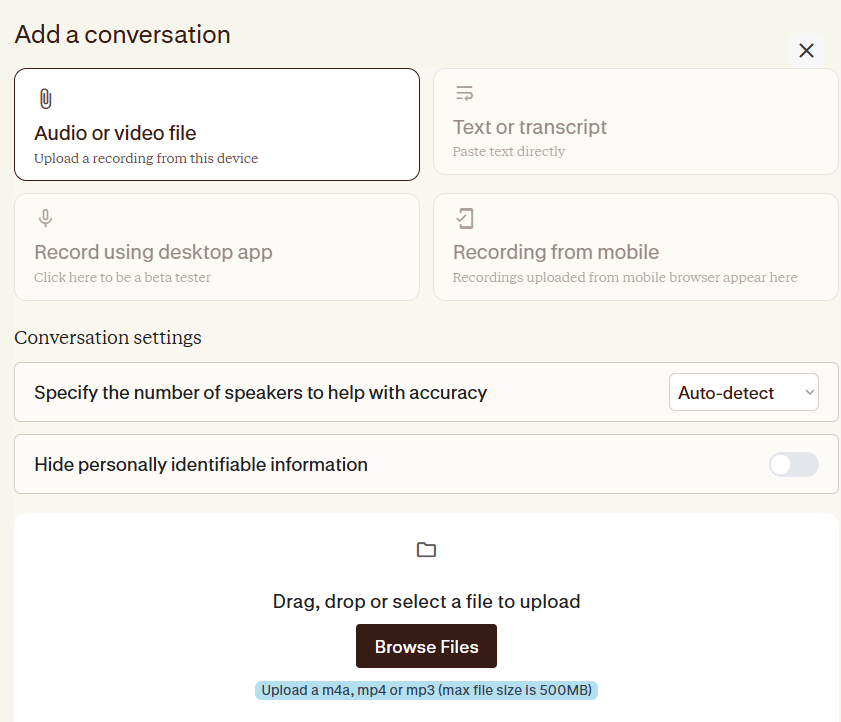
You'll see a pop-up with options for file type. Select either:
Audio or video file - upload a recording from your device
Text or transcript - paste text directly
Under Conversation settings, you can configure your preferences before uploading:
Specify the number of speakers - set this manually or leave it on Auto-detect to help improve transcription accuracy
Hide personally identifiable information - toggle this on if you'd like any PII to be hidden in the transcript
Drag and drop your file into the upload area, or click 'Browse Files' to select it from your device.
Click 'Save' to add the conversation to your workspace.
Good to know: Supported file formats are m4a, mp4, and mp3, with a maximum file size of 500MB.
What can you do with an uploaded conversation?
Everything. Once a conversation is in your workspace, you can use it exactly as you would a conversation recorded in Contented - including:
Generating insights and outputs
Editing the transcript
Adding or editing speakers
Downloading the transcript or audio
Sharing the conversation with teammates
Important things to know
Supported file types
Audio and video: m4a, mp4, mp3 (max 500MB)
Text: paste directly into Contented - no file upload needed
Processing time
Uploaded audio and video files will be processed before the transcript is available - this may take a few moments depending on file size
Desktop only
The Add Conversation feature is available in your workspace only, not through your mobile app.
Further help & support
The fastest way to get support is through the Contented support widget in your Contented workspace. Search our knowledge base for answers, or chat directly with the team to ask questions and troubleshoot.