New workspace dashboard for admins
Last updated: May 22, 2026
Workspace admins can now manage users, view usage statistics and download CSV reports from the workspace dashboard.
What's new
The workspace dashboard gives administrators a clearer view of their organisation's Contented workspace, with metrics to monitor usage, manage users, and track adoption over time.
See your organisation's total usage to date at a glance: total recordings, hours used, outputs generated, and active users.
Track adoption month-by-month and export the data as CSVs.
View user analytics, including identifying inactive accounts.
Delete users, with a built-in 24-hour window to reverse the action if needed.
Access
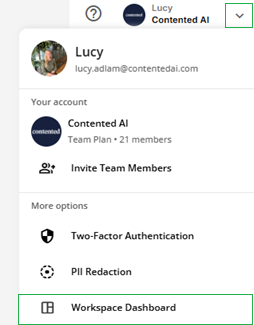
The dashboard is still in the same place - through the dropdown menu in the corner of your workspace. It is now named ‘Workspace dashboard’. This section is only visible to users with admin permission.
Features
Overview tab

At the top of the dashboard, you'll be able to toggle through:
Overview - graph of monthly trends and summary of which templates were used most, filtered by module.
Users - user management including the ability to remove users from your workspace.
Analytics - usage analytics showing volume of recordings, hours and last activity per user.
Billing - coming soon
Monthly trends
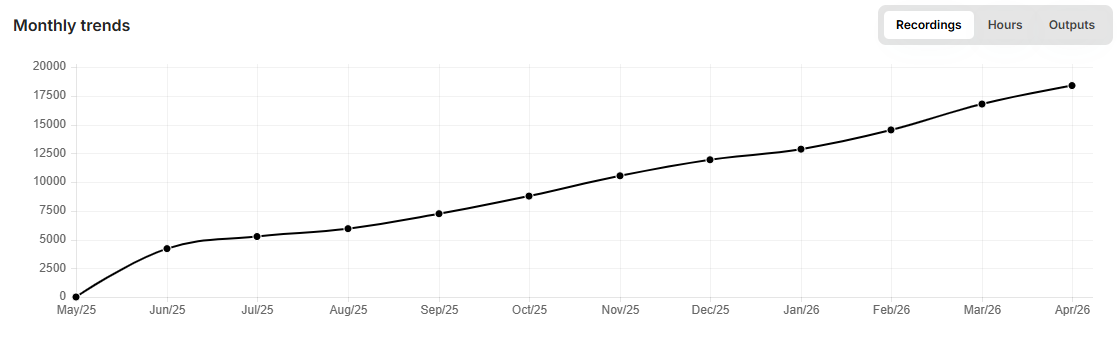
The monthly trends graph on the Overview page lets you track Contented usage over time. Toggle between recordings, hours and outputs to explore different metrics:
Recordings: Number of recordings created each month.
Hours: Hours of recordings across all users each month.
Outputs: Number of outputs generated each month.
Outputs
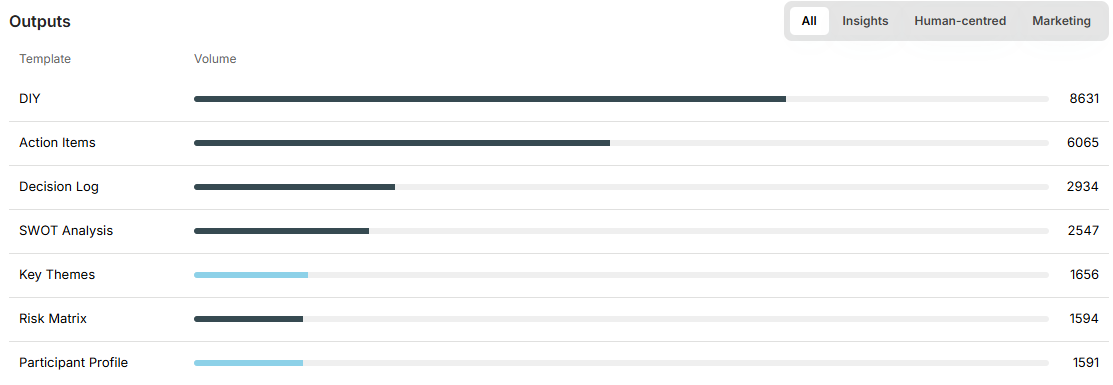
See which templates your team uses most, filterable by module, so you can understand adoption and where there's room to grow.
Users tab
The Users tab lets you view and manage everyone in your workspace, including removing users when needed.
Managing users
Delete users: Remove users from the workspace directly using the rubbish bin icon.
Deletion window: When you delete a user, you'll see a confirmation prompt: "Are you sure? The user and their recordings will be scheduled for deletion in 24 hours." This gives you a safety net before anything is permanently removed.
Cancel a deletion: You can cancel a scheduled deletion from the admin dashboard within that 24-hour window. You’ll need to message us on support@contentedai.com
Retaining recordings: If you need to keep a user's recordings while removing their access, contact support before proceeding with the deletion - support@contentedai.com .
Analytics tab
Analytics shows you an overview of how each person in your workspace is engaging with Contented - number of recordings, hours, last activity, and whether their usage is trending up or down.
You can download usage analytics as a CSV file, by clicking the Download button.
Coming soon
The following features are on the roadmap, but not yet available in the dashboard:
View membership plan details
Assign admin roles.
SSO and billing management.
Email address changes.
Enhanced reporting, including AI-generated usage summaries.
Best practices
Review usage monthly: Check the analytics section regularly to track adoption trends across your team.
Keep your user list tidy: Periodically review and remove inactive accounts to keep your data accurate.
Consider recordings before deleting: Decide whether a departing user's recordings need to be retained before you initiate deletion
Support
The fastest way to access support is through the support widget in your workspace, however you can also email support@contentedai.com.
Reach out to us for support with:
Retaining recordings when removing a user;
Technical issues with the dashboard;
Feature requests or questions.