Downloading Contented for Windows
Last updated: July 23, 2026
This guide walks you through downloading and installing the Contented desktop app for Windows. It only takes a couple of minutes. If you have a Mac, this isn't for you. We'll have an app coming for you soon.
Before you begin
To install the app, you'll need:
A Windows computer.
A Contented account.
Internet access.
If your computer is managed by your workplace, you may need your IT team to approve the installation or install it for you. We can help them if needed.
Downloading the app
Download the latest version of Contented for Windows here. It should start automatically.
Once that's complete, go to your downloads folder and double click on the new Contented download to run and install it:
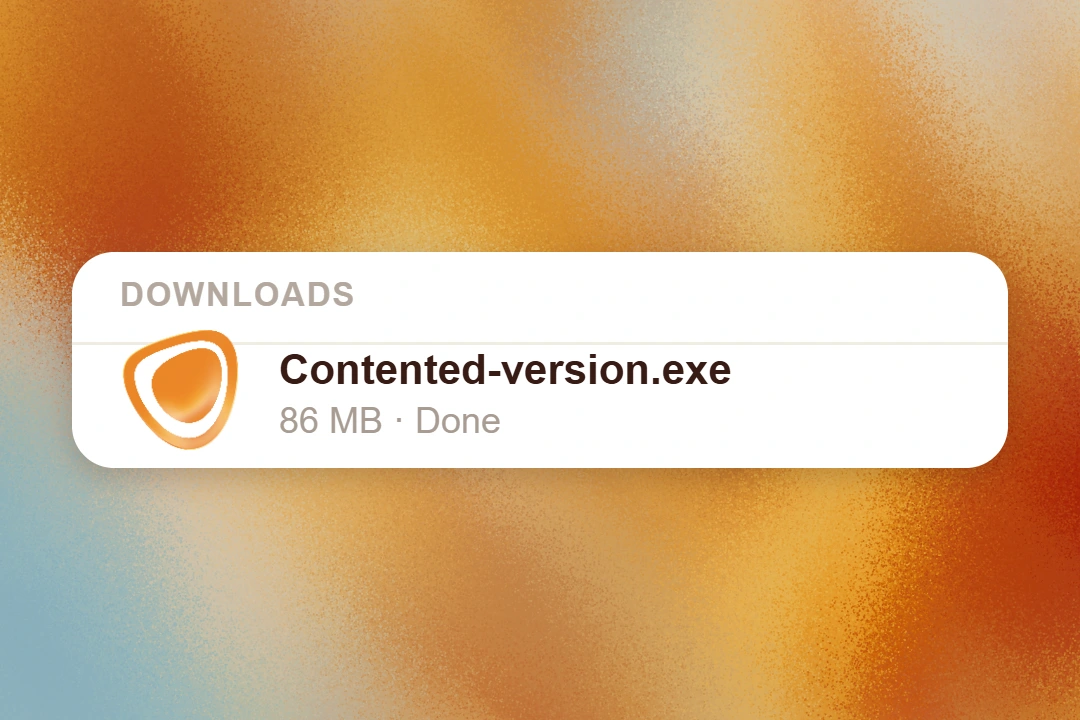
Windows may ask if you'd like to allow Contented to make changes to your device.
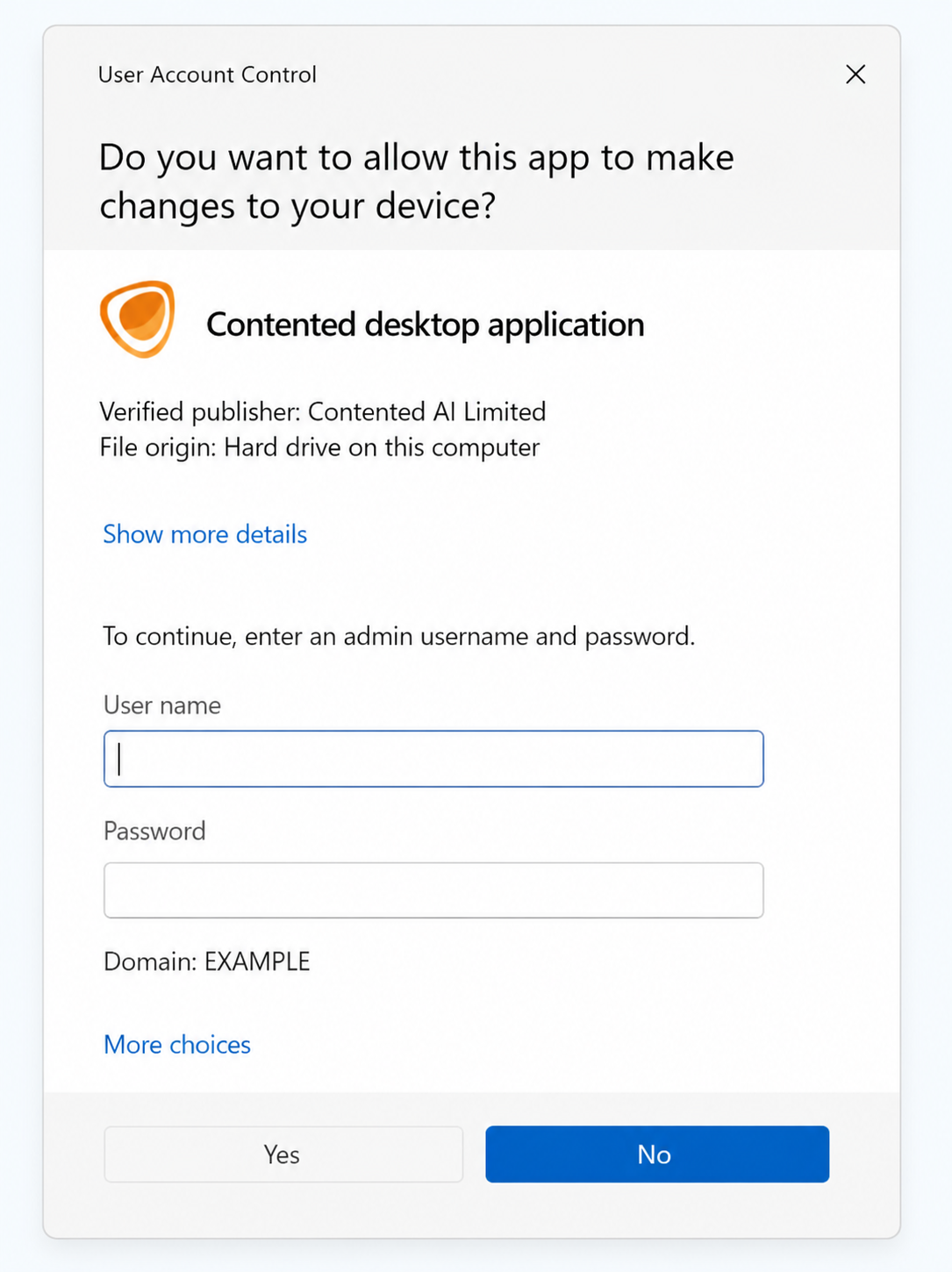
This screen is generated by Windows, not Contented. If you're asked to enter a username and password, you'll need your Windows administrator credentials, not your Contented email and password.
If you don't know your Windows administrator credentials, please contact your IT team for assistance.
Signing in
Open the Contented for Windows desktop app
Enter the same email address you use to sign in to Contented and select Continue.
Your default web browser will open automatically.
Select Continue with email.
Enter the 6-digit sign-in code sent to your email address.
Once you've successfully signed in, you'll be prompted to open the Contented desktop app.
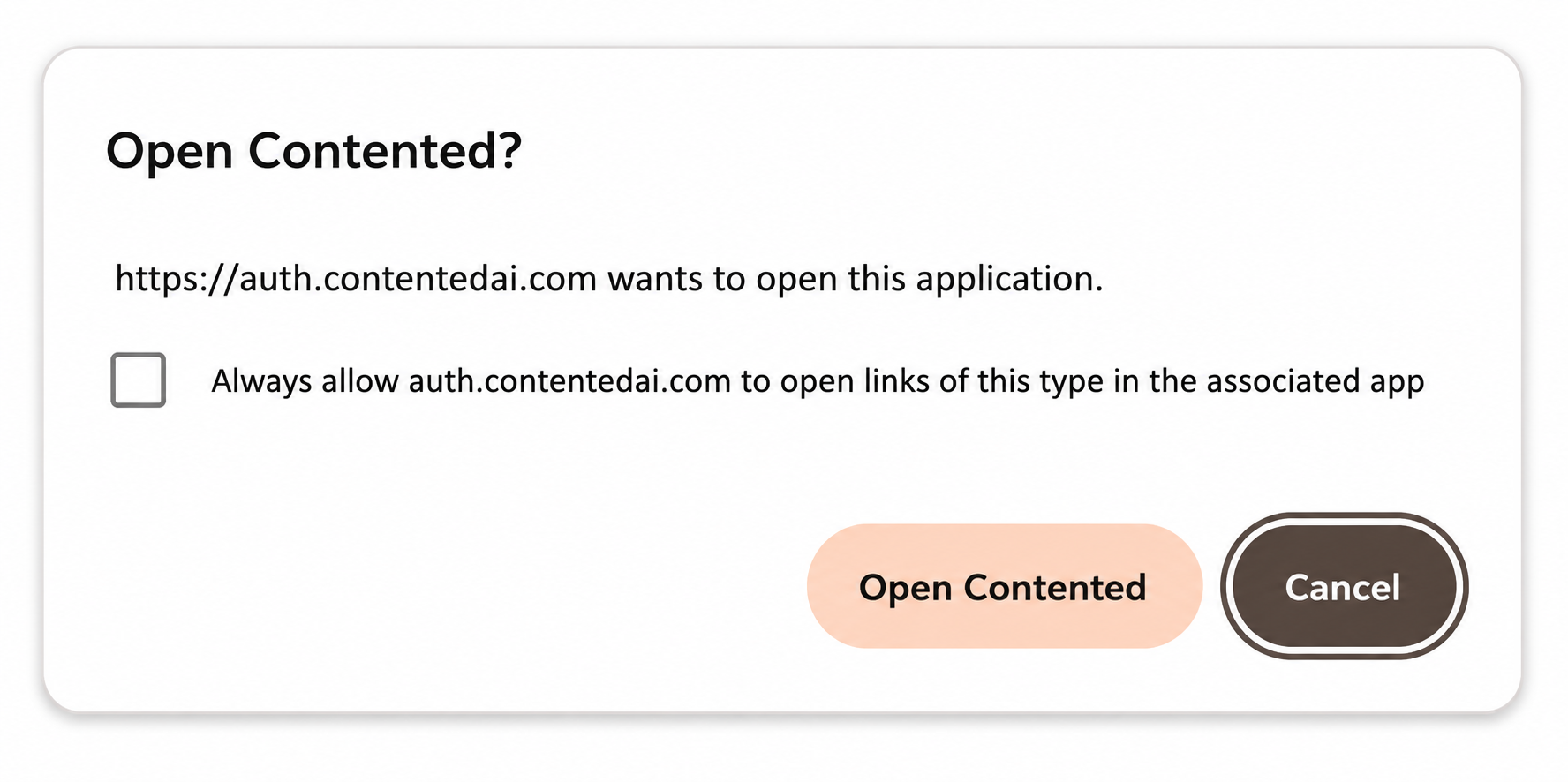
This prompt is generated by your web browser and is expected. Select Open Contented to securely complete the sign-in process and return to the desktop app.
Select Open Contented.
You'll be returned to the Contented desktop app and signed in automatically.
First-time setup
You need to allow permissions in order for Contented to record both you and people you're speaking to. You'll be asked to allow access to:
Microphone access
System audio access
Allow both.
Need help?
I'm being asked for an administrator username and password
This is a Windows security feature. You'll need to enter your Windows administrator credentials. If you don't know these, please contact your IT team.
My workplace blocks the installation
If your IT team requires technical information before approving the installation, please refer them to our Network requirements for the Contented desktop app article. It includes the domains and network requirements needed for the app to function correctly.
What's next?
You're now ready to start recording.
Continue to Contented for Windows recording basics to learn how to make your first recording.
Notes
If you're signing in for the first time, your browser must remain open until you've selected Open Contented.
Once you're signed in, you won't need to repeat these steps unless you sign out of the app or your session expires.