Contented for Windows FAQs
Last updated: July 23, 2026
General information
Q: What is Contented for Windows?
A: It's a recording app for your computer. It captures the audio of your meetings and calls. It's not a bot autojoining, and nothing pops up for the other people. Once you're done, head to the Contented workspace (on your computer) to turn the recording into polished documents and insights, such as action items, a client profile, or a follow-up email.
Q: How is it different from the mobile app?
A: The mobile app can only capture what your phone microphone picks up (like a musing or an in-person conversation). The desktop app for Windows can capture your computer microphone and system audio - so it also hears everyone else on a video call, or anything playing through your computer (or headphones).
Q: Where do my conversations go after recording?
A: Once you finish recording, your conversation automatically uploads to your workspace via an encrypted connection where transcription and AI processing happen. Your data isn’t stored on your device. Once uploaded, you can edit and create outputs from your conversation in your Contented workspace on your browser, just like with your mobile recordings.
Q: Is it available for Mac?
A: Not yet, but it will be soon! A Mac version is currently in development.
Download and installation
Q: Do I need special permissions to install the app?
A: If your workplace has a security review process for new software, that's no problem - we hold the necessary security certifications and can send documentation to your IT team.
Login and setup
Q: How do I log into the Contented app for Windows?
A: Use the same email and password you use to log into Contented on your browser or phone.
Q: What permissions does the app need?
A: Microphone access, and permission to capture system audio. When you first install Contented for Windows, you'll be asked to approve them.
Using the app
Q: How do I start recording?
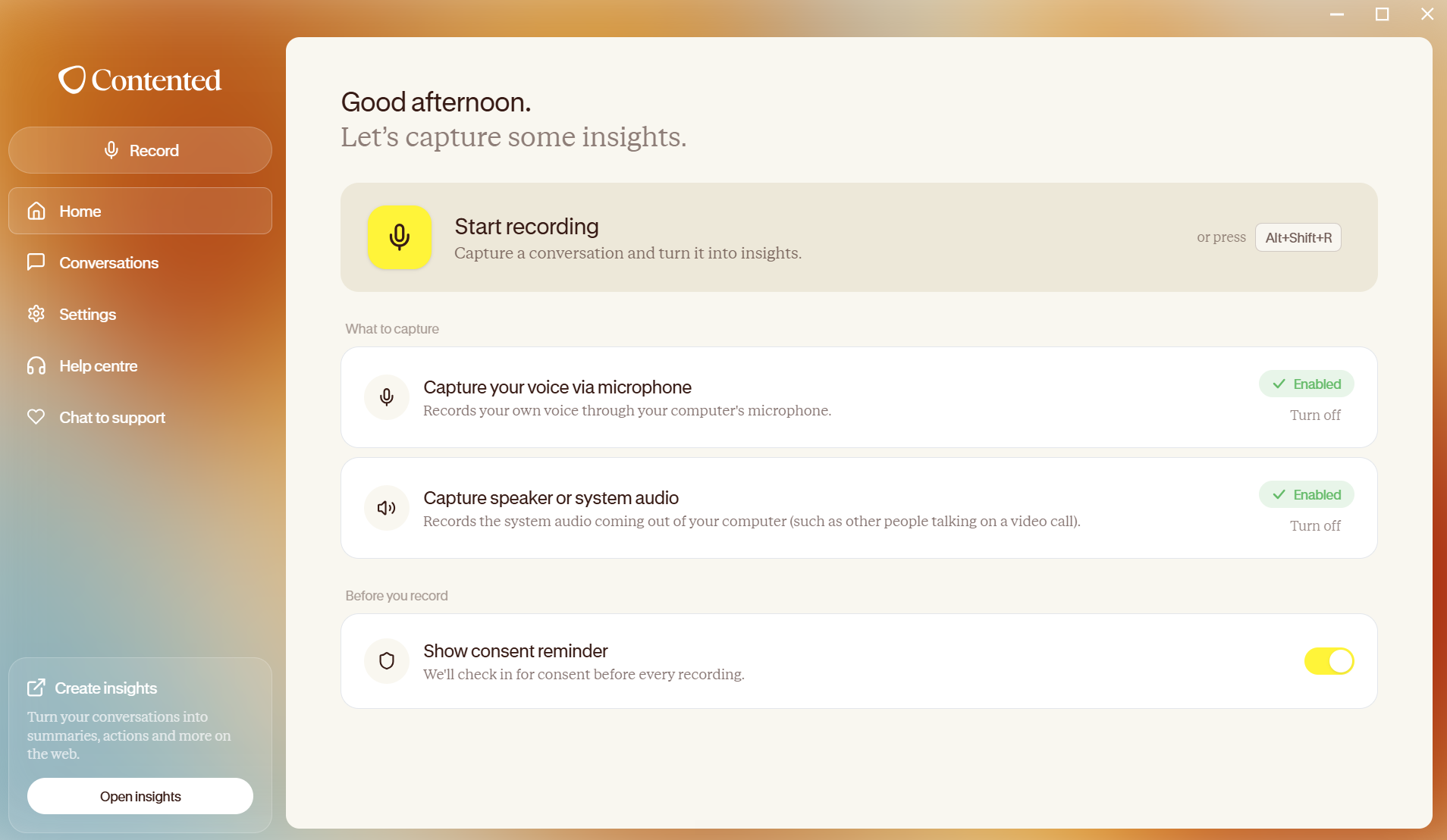
A: Click the central microphone icon to begin a new recording. You'll see a recording pill appear in the bottom right of your screen. This can be moved around.
Q: Will I be asked about consent?
A: If Show consent reminder is switched on (we recommend leaving it that way), you'll get a friendly nudge before each recording to confirm everyone's happy to be recorded. Click I have consent to carry on.
Q: Can I pause and resume recordings?
A: Yes - hit Pause any time and Resume when you're ready. It all stays as one recording. You can do this from the app or from the small floating recording pill, which you can move around your screen and switch on or off in Settings → General → Show recording pill.
Q: How do I stop and save a recording?
A: Click the stop button on either the recording control or the Contented app on your computer screen. You’ll be prompted to name your recording. If you don't enter a name, it will use a default name.
Q: What happens during screen sharing?
A: If you're sharing your whole screen, others will see the recording pill. Share just a tab or window instead, and it stays out of view.
Features and functionality
Q: How long can recordings be?
A: Contented supports long recordings. Testing has been done with recordings over an hour long successfully.
Q: What happens if I lose internet connection during recording?
A: You don't need internet for recording, but you will need an internet connection to upload the recording after it is completed.
Q: Does the app auto-save recordings?
A: Yes, Contented on your computer autosaves recordings every 5 minutes.
Q: How do I know a recording has uploaded?
A: Check Conversation history: a spinner means it's still uploading, a green tick means it's safely stored. If you see Upload failed, click Retry? If it says the file's no longer available, that one sadly can't be recovered, but nothing else is affected.
Q: Where do I turn a recording into documents or create insights from it?
A: In your Contented workspace. The computer app for Windows is just for recording. Click Open insights at the bottom-left of the menu, log in with the same email, and your recordings will be waiting for you.
Data and security
Q: Where is my recording data stored?
A: Data isn’t stored permanently on your computer. Recordings are processed through the web app in Sydney, following the same security protocols as the browser version.
Q: Is two-factor authentication (2FA) available?
A: Yes, you can enable 2FA across all your devices using Contented.
Q: How do I access my recordings?
A: To listen to your recording and create content and insights from your conversations, you'll need to be in your Contented workspace.
Updates and support
Q: How do I update the app?
A: Update notifications happen automatically. When you reopen the app, a popup will show if there's a new update available, and you can choose to update at that time. We recommend updating whenever there is one available.
Q: Who can I contact for issues or questions?
A: Reach out to support@contentedai.com or start a chat in your shared channel (Teams or Slack if you have this set-up).