How to Combine Recordings
Last updated: June 19, 2026
Contented allows you to combine separate recordings into a single, unified conversation. This makes it easier to generate insights from several conversations including identifying key themes or frequently asked questions.
Good to know: Before you combine recordings, make sure to label your speakers first. When recordings are combined, they become a text transcript and speaker labelling isn't available.
Go to your Conversation Library
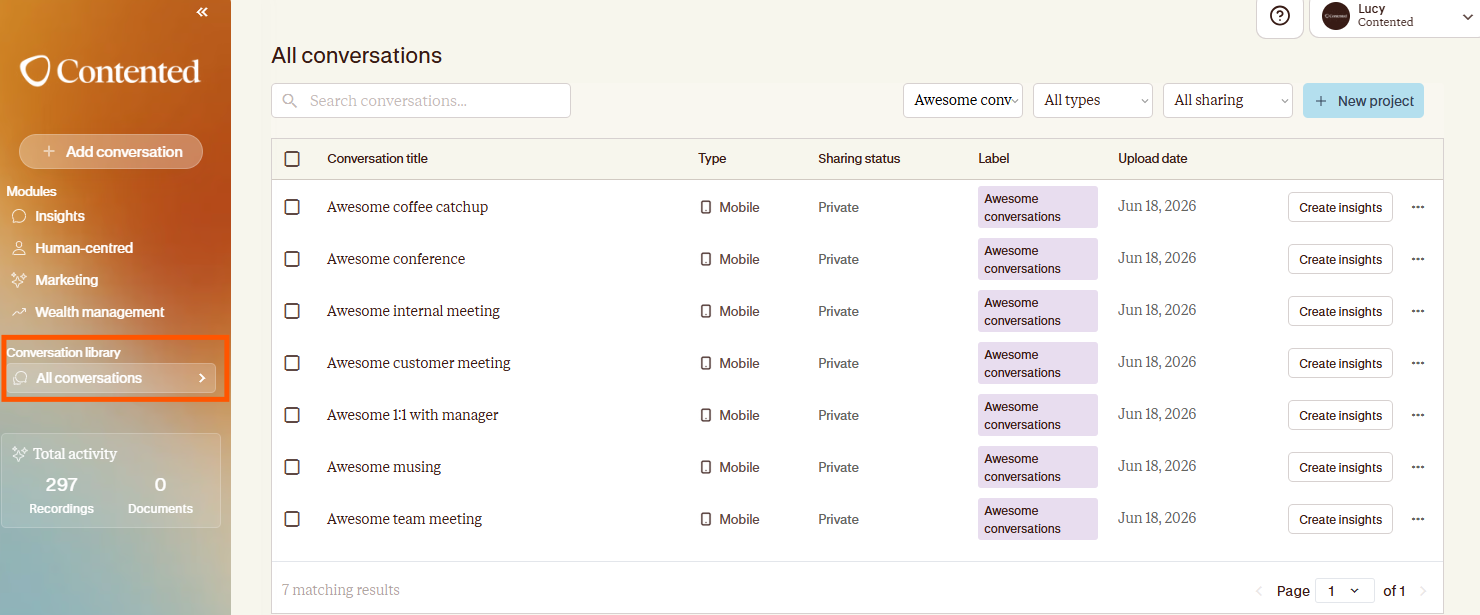
Navigate to the "All conversations" tab in the left-hand menu. This will open your Conversation Library, displaying all your conversations.
Select the Recordings
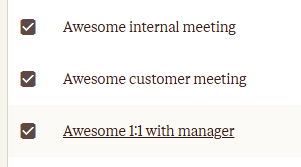
Select the recordings you want to combine - up to five at a time. Tick the checkboxes next to each title to make your selection.
Combine Recordings
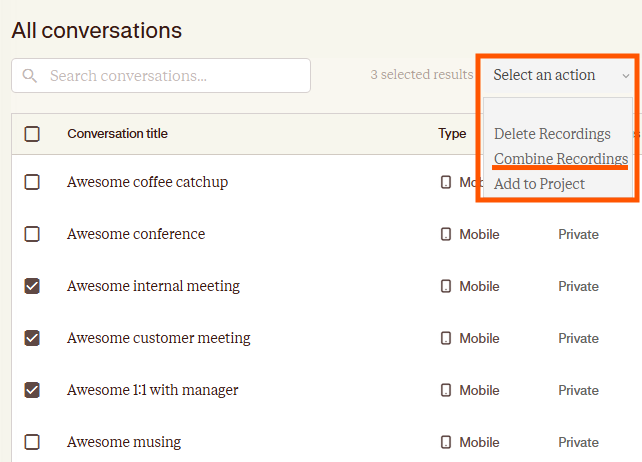
Once you've selected the recordings, click the “Select an action” button that appears at the top right. From the dropdown menu, choose "Combine Recordings."
Name the Combined Conversation
A pop-up window will appear, displaying the selected recordings. In the "Combined Conversation" section, enter a descriptive title for the new, merged recording. This will help you easily identify the combined conversation in your library.
Confirm and Process
Click "Confirm." Contented will begin processing the recordings, combining them into a single conversation. You'll see a progress indicator while the merging takes place. This might take a few moments depending on the size of the recordings.
Access the Combined Recording
Once the process is complete, you'll receive a notification that the combined recording has been saved to your workspace. The new, merged conversation will appear at the top of your Conversation Library.
Important Considerations
Original Recordings: Your original recordings will remain unchanged. The combined recording is a new, separate entity.
File Size: Combining very large recordings might take longer to process.
Recording type: Once your conversations have been combined, they will be a text file only. You will not be able to listen to them.
Further help & support
The fastest way to get support is through the Contented support widget in your Contented workspace. Search our knowledge base for answers, or chat directly with the team to ask questions and troubleshoot.