Choosing audio sources in the Contented app for Windows
Last updated: July 20, 2026
Granting permissions
Before Contented can record on your computer you need to set up some permissions for two audio sources. You'll be asked for these permissions during onboarding, the first time you set up the app.
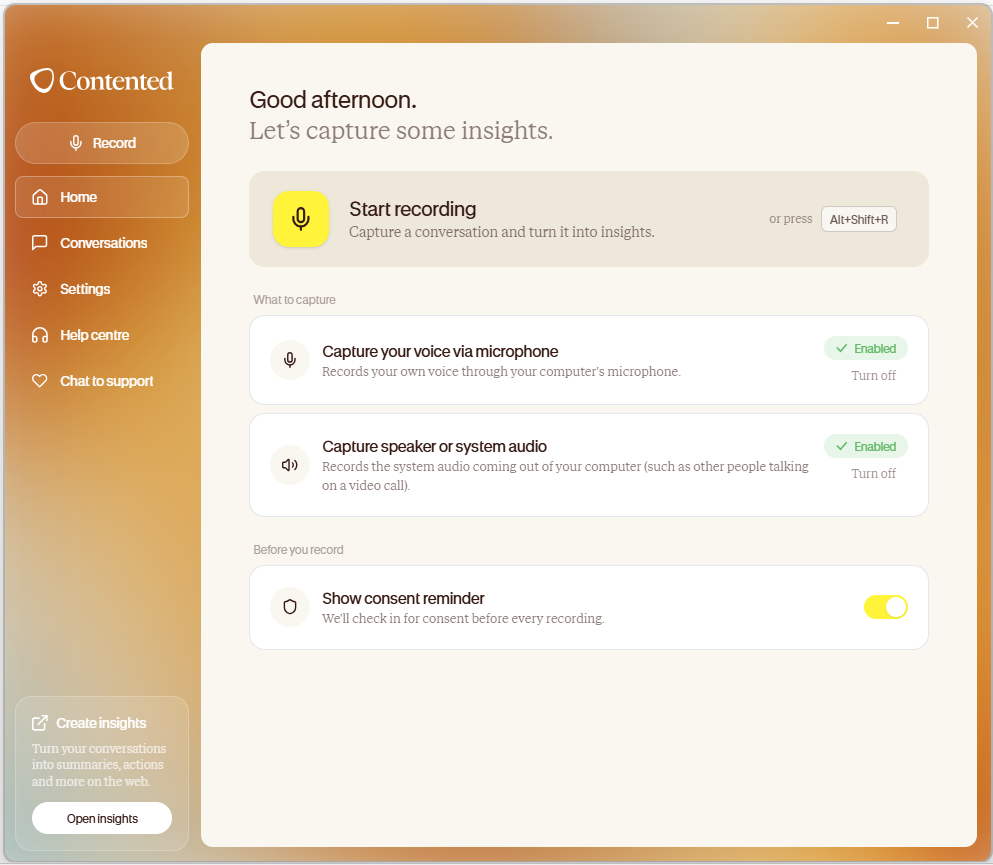
When prompted, allow microphone access so Contented can capture your voice. This records what you're saying through your computer's microphone.
When prompted, allow system audio access so Contented can capture other speakers or call audio (such as a Teams or Zoom video call). This records the audio coming out of your computer, such as other participants on a video call.
Capturing both gives you a complete recording of a conversation, which is the recommended setting for most calls and meetings.
If at any point your recording isn't picking up sound, the first thing to do would be to check that these options are still enabled. On your Home screen you'll see "Capture your voice via microphone" and "Capture speaker or system audio" - check both are enabled.
Selecting your microphone
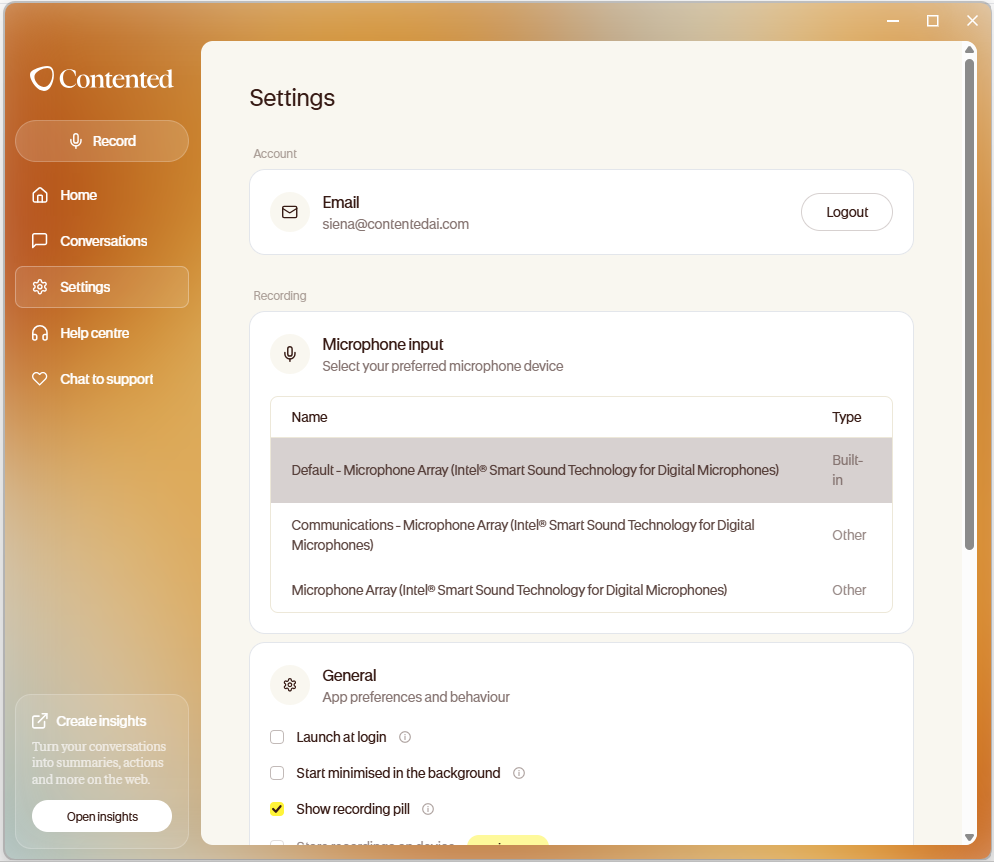
If your computer has more than one microphone available, such as a built-in mic and an external headset, you can choose which one Contented uses.
Go to Settings.
Under Recording, find Microphone input.
Review the list of available devices. Each one is labelled with its name and type (for example, Built-in or Other).
Select the microphone you want Contented to use for recording.
Tip: If your recordings sound muffled or too quiet, check that the correct microphone is selected here, especially if you've recently connected or disconnected a headset or external mic.