Admin Dashboard
Last updated: September 9, 2026
The Admin Dashboard gives account admins one view of how their team uses Contented: who's on the account, how much they record, and which output templates they actually use.
Before you start
The dashboard pulls data from several places at once, so a full load or refresh takes around two minutes. If numbers look empty or only partly filled in when you first land on the page, nothing is broken. Give it a moment and it will fill in.
Overview tab
Totals
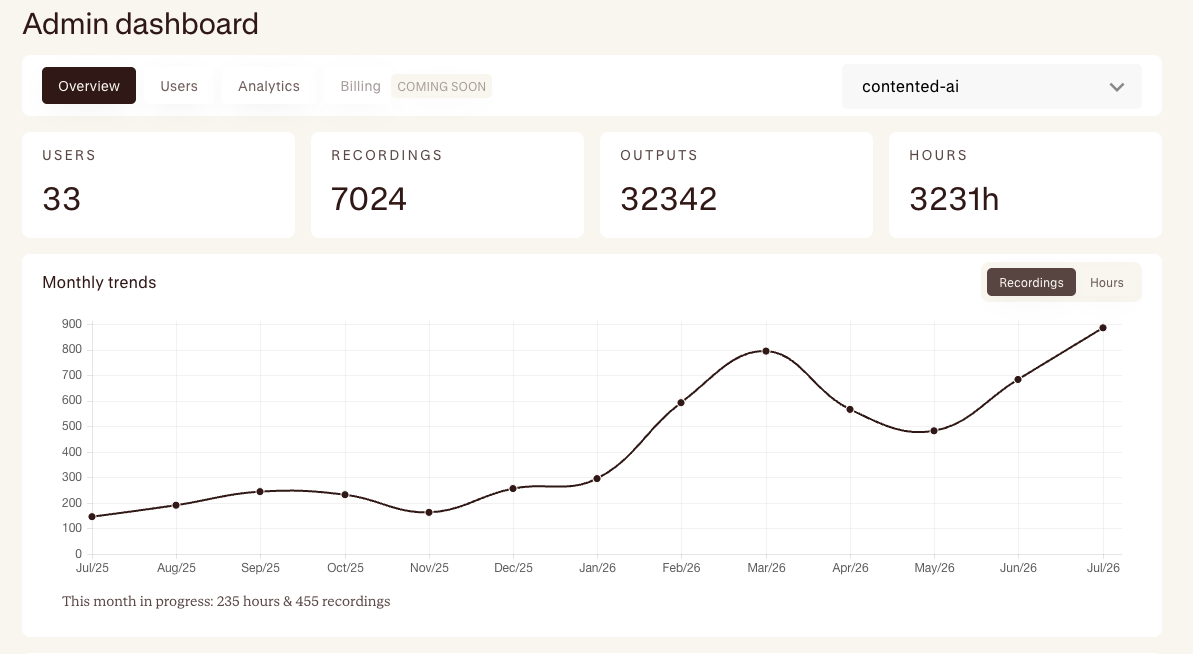
Four cards sit across the top of the Overview tab:
Users – total people on the account
Recordings – total recordings made
Outputs – total outputs generated
Hours – total hours recorded
Monthly trends
The chart below the totals plots activity month by month. Use the buttons at the top right of the chart to toggle between Recordings and Hours.
The chart only covers completed months. Since the current month is still in progress, it appears as a note under the chart rather than as a point on the line.
Outputs
The Outputs table shows every output template and how many times your team has used it. Templates are ranked by volume, so the most-used template sits at the top.
Filter the list using the tabs at the top right:
All
Insights
Human-centred
Marketing
Custom templates: Custom templates aren't currently labelled by name in this table. We're working on improving this, but if you need to identify which custom template corresponds to a particular entry in the meantime, please get in touch and we can confirm this for you.
Tip: You'll see some blank rows in this table. These are unused custom slots and placeholder templates showing as zero, not real templates your team has ignored. You can disregard them.
Users tab
The Users tab lists everyone on the account, along with their email, job title, and role.
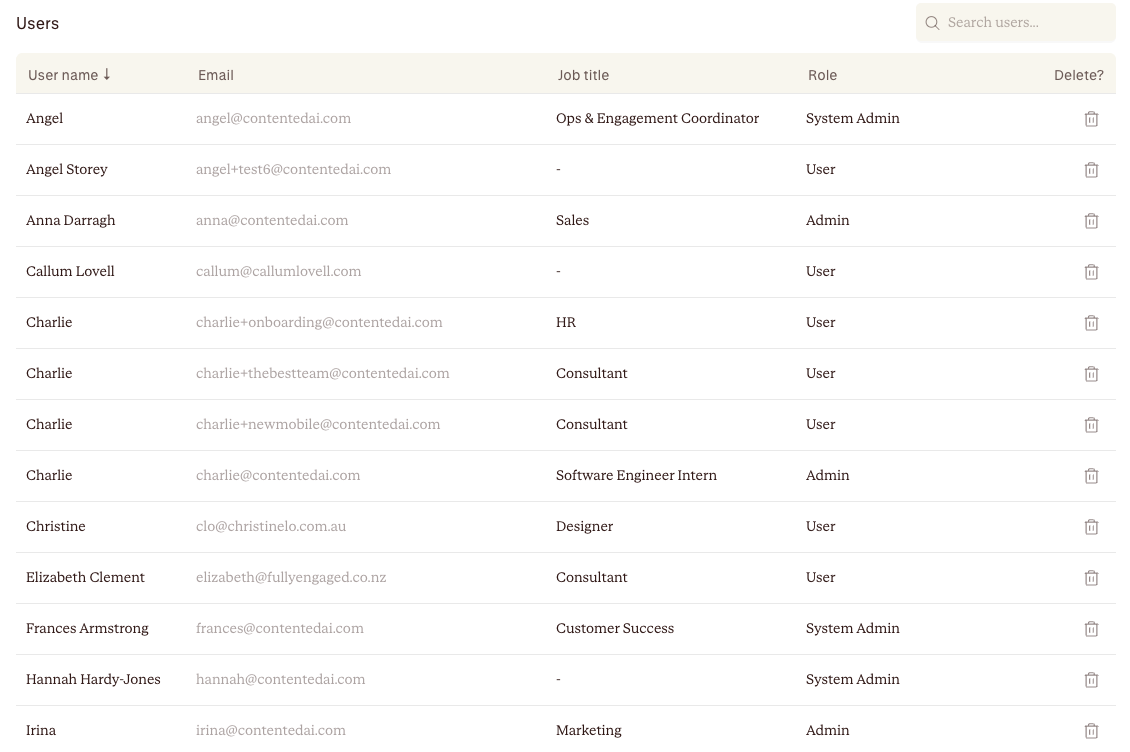
From this tab you can:
Search for a user
Sort by user name
Delete a user using the bin icon on the right
Deleting a user
Deleting a user doesn't happen immediately. It schedules a deletion, and you have 24 hours to change your mind before it's final.
Click the bin icon in that user's row.
Confirm on the first prompt, which names the user you're about to remove.
Confirm again on the second prompt. This one deletes the user and their recordings.
Once scheduled, the bin icon in that row is replaced by a red Deletion in 24h label.
Cancelling a deletion
If you change your mind within the 24-hour window:
Click the red cross next to the Deletion in 24h label.
Confirm on the Cancel deletion? prompt.
The user and their recordings stay available, and the row returns to normal with the bin icon restored. After 24 hours, the deletion runs and can't be undone.
Keeping the recordings
Deleting from the dashboard removes the user and their recordings together. If you want to remove someone but keep what they've recorded, email support@contentedai.com instead of using the bin icon.
Coming soon: You'll be able to promote users to admin directly from this tab. Until then, contact your Contented representative to change someone's role.
Analytics tab
The Analytics tab breaks usage down by individual user for a given month.
For each user, you'll see:
Recordings – the count for that month, with an arrow showing the change from the previous month
Hours – the same, with month-on-month change
Last activity – how long since they last used Contented
Use the selector at the top to pick a month, and select Download to export that month's data as a CSV.
This tab is the slowest to load, since it's doing the most work behind the scenes. Expect it to take a little longer than the other tabs.
Known issue: Column sorting doesn't work yet on this tab. If you need to rank users, download the CSV and sort it there instead.
Known limitations
Data comes from several sources, so loading or refreshing the dashboard takes a second
Sorting on the Analytics tab isn't live yet
Admin roles can't be assigned from the dashboard yet
Deleting a user also deletes their recordings, and you only have 24 hours to cancel
Billing isn't live yet
Blank and placeholder rows appear in the Outputs table and can be safely ignored
Need help?
If you run into anything unexpected, or you'd like to remove a user without deleting their recordings, email support@contentedai.com.